In this article, we will cover:
What is the Extension
Use the Extension to obtain legal rights to your UGC from Instagram or to pull TikTok and Instagram content directly into your Boards, giving you access from anywhere.
Tiktok: we can add content to your Board to display.
Instagram: Request rights to any post on Instagram. Navigate to a post, click the extension, select and paste your message, and post the comment. The platform handles the rest of the process. We host legal terms, check for approvals, and get the highest-quality images to power your UGC marketing.
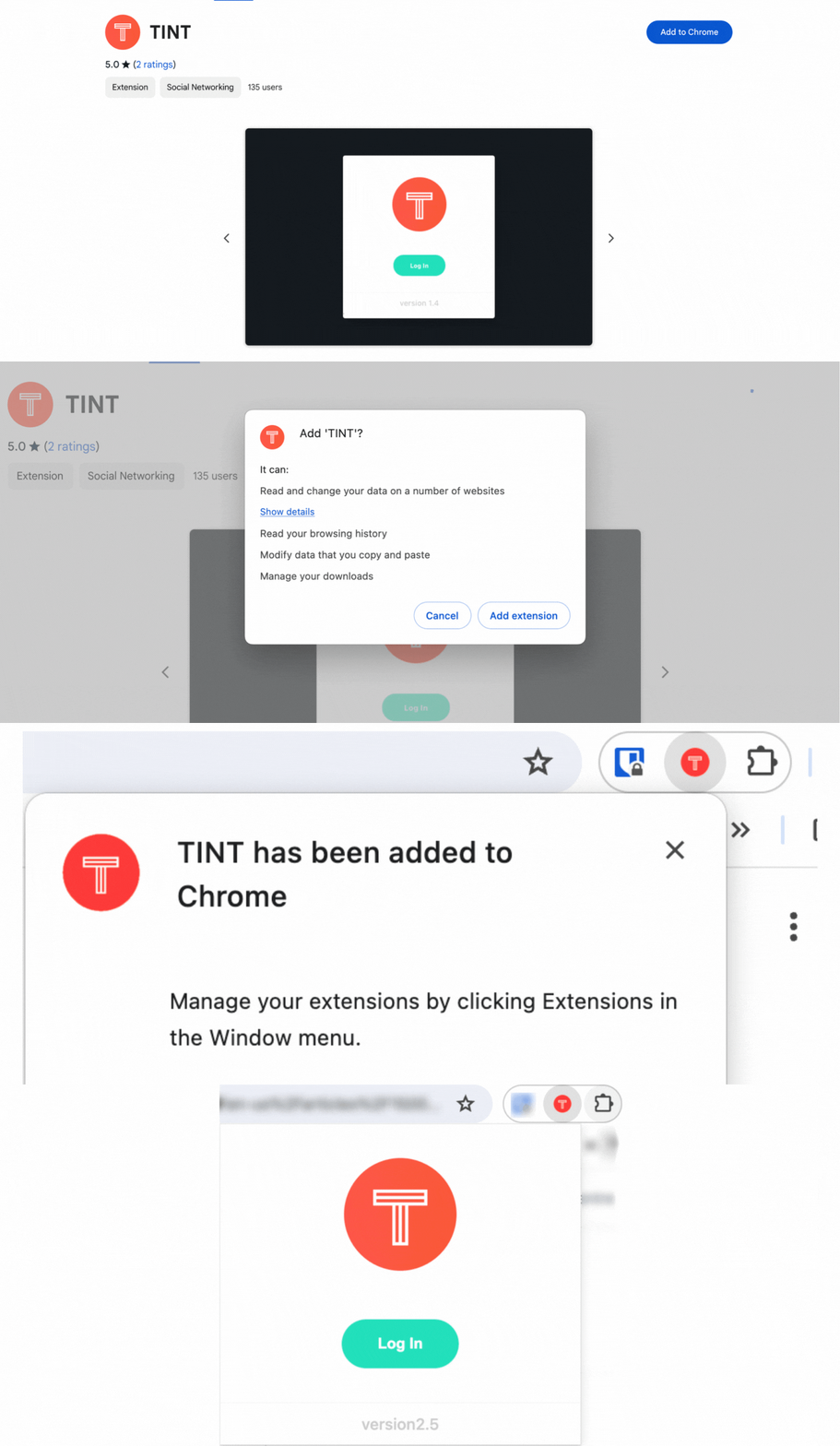
How to Install the Extension App on Chrome
-
Go to Chrome
-
Click on the link to download or search the Chrome Extension Store for the TINT app
-
Click on Add to Chrome
-
Click on Add Extension
-
Once installed, you can access the extension in Chrome in the upper right-hand corner of your browser window.
How to Install the Extension App on Safari
-
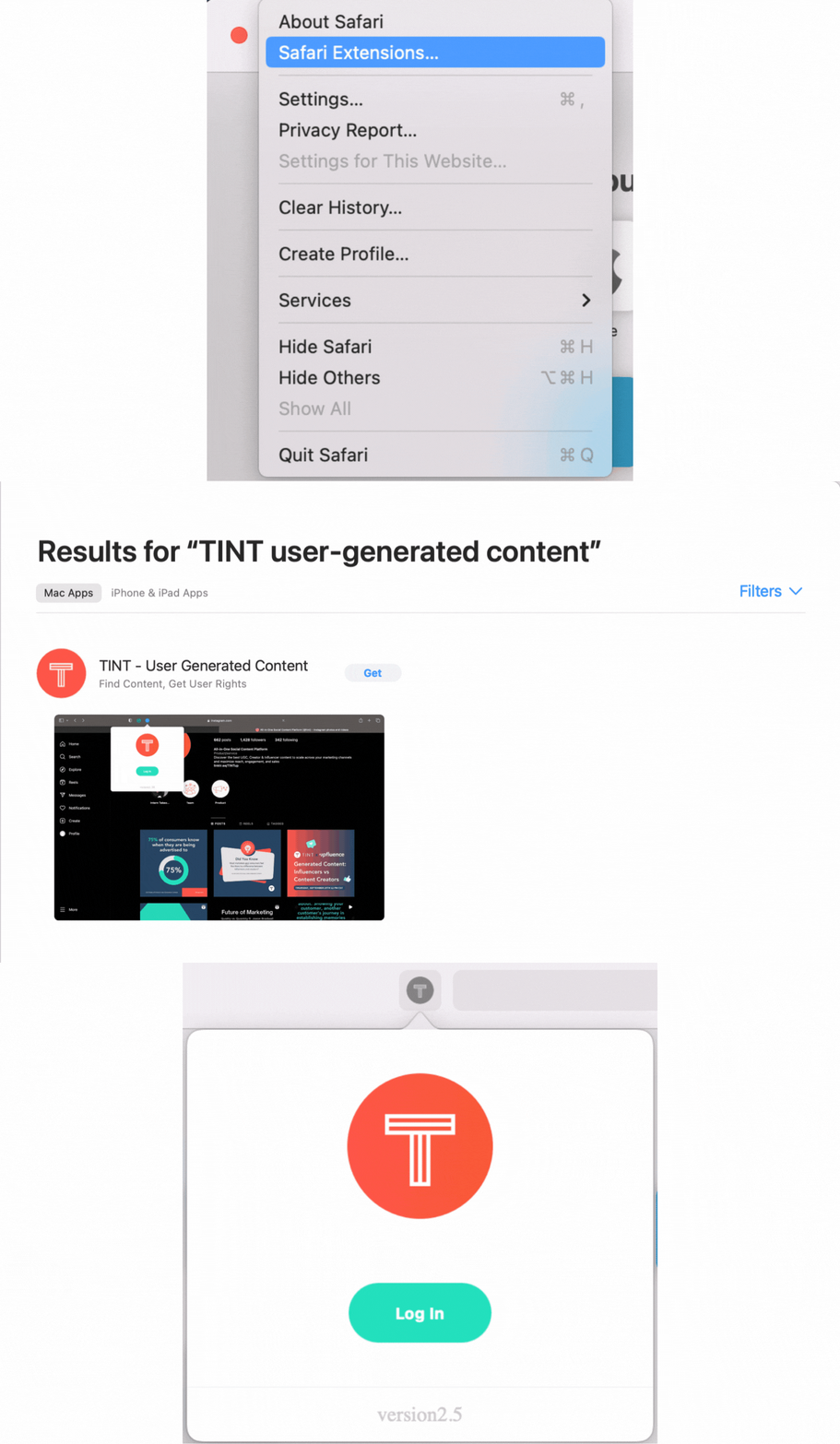
Go to Safari
-
Click on Safari on the menu bar
-
Click on Safari Extensions ...
-
A pop-up window will appear, and in the search bar, search for the term "TINT user-generated content" and click on Get
-
Once installed, you can access the extension in Chrome in the upper left-hand corner of your address bar
How to use the Extension
How to use the Extension for TikTok
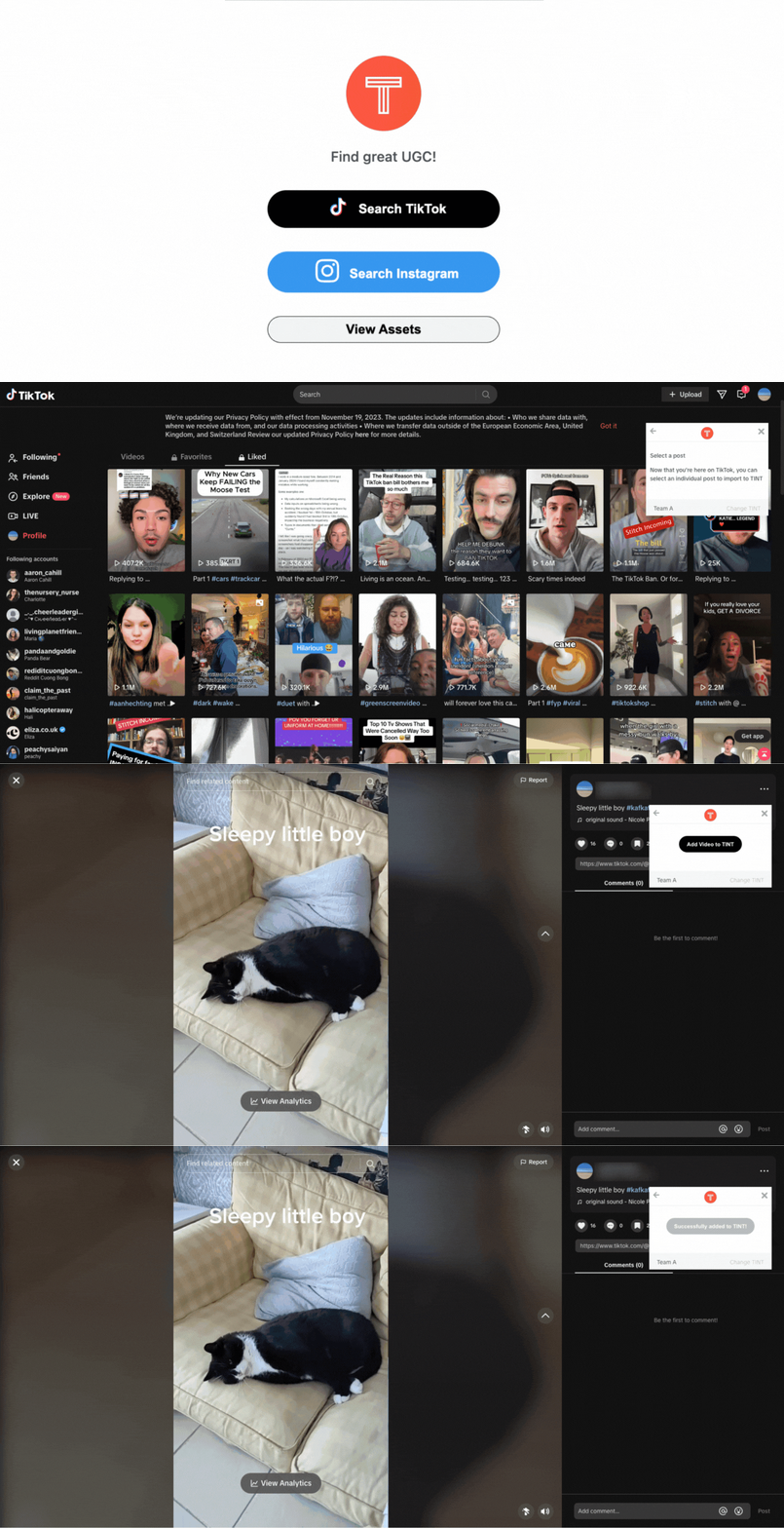
To import TikTok videos onto your Board:
- Click on the TINT logo in your Extensions in Chrome
- Log in to your account
- Click on Search TikTok, which will take you to the TikTok website
- Check which team (for users that are in more than one team) and Board your chosen videos end up on. To change Board or/and your team, click on change Board in the right-hand corner
- Select the Board you want
- Click the arrow back to take you back to the Select a Post option
- Find a video you want to select
- Click on the video
- Click on Add Video to your Board
- This will add a feed to your Board called Browser Extensions, and you will find your video there
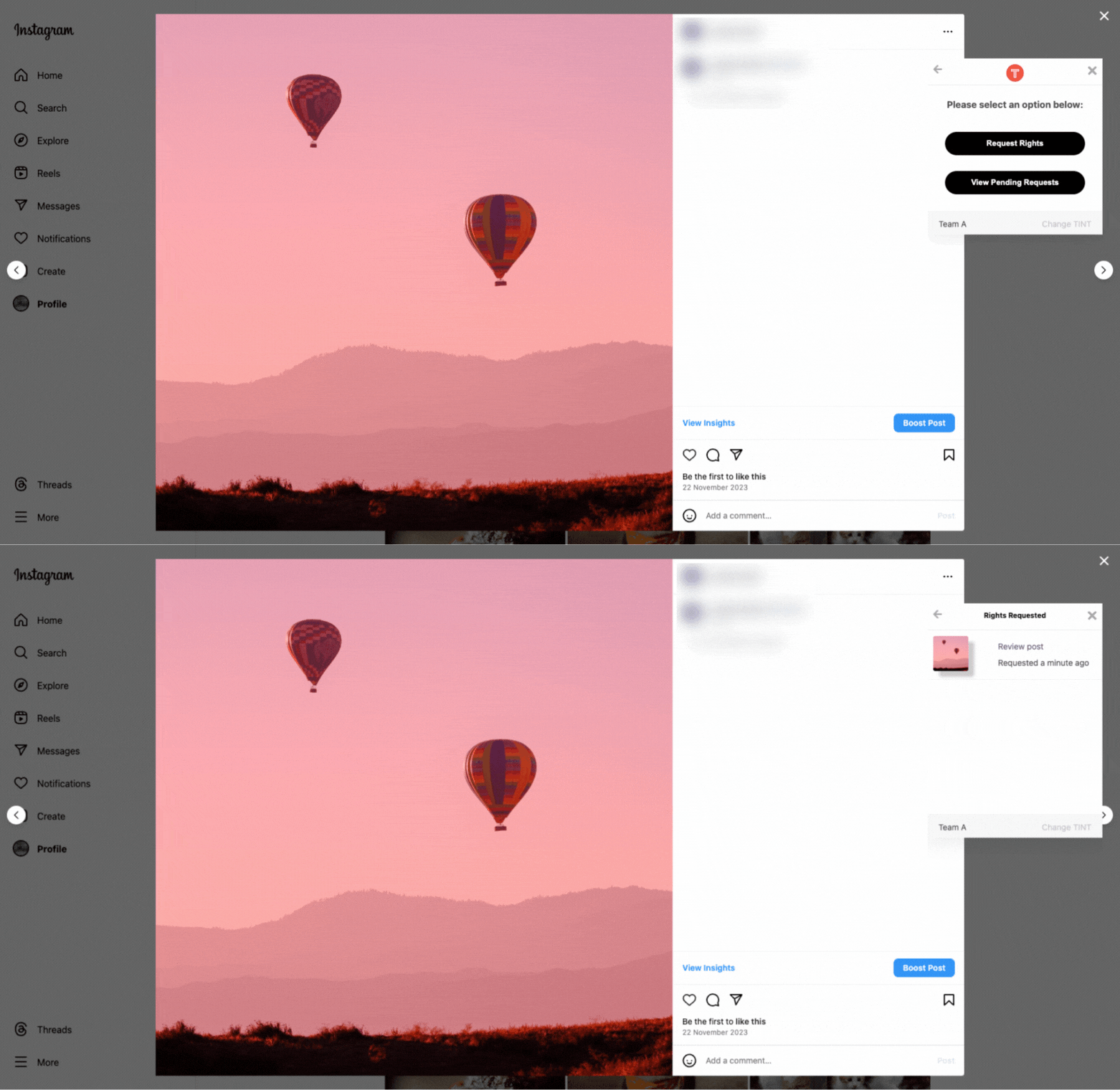
How to request right via the Extension for Instagram
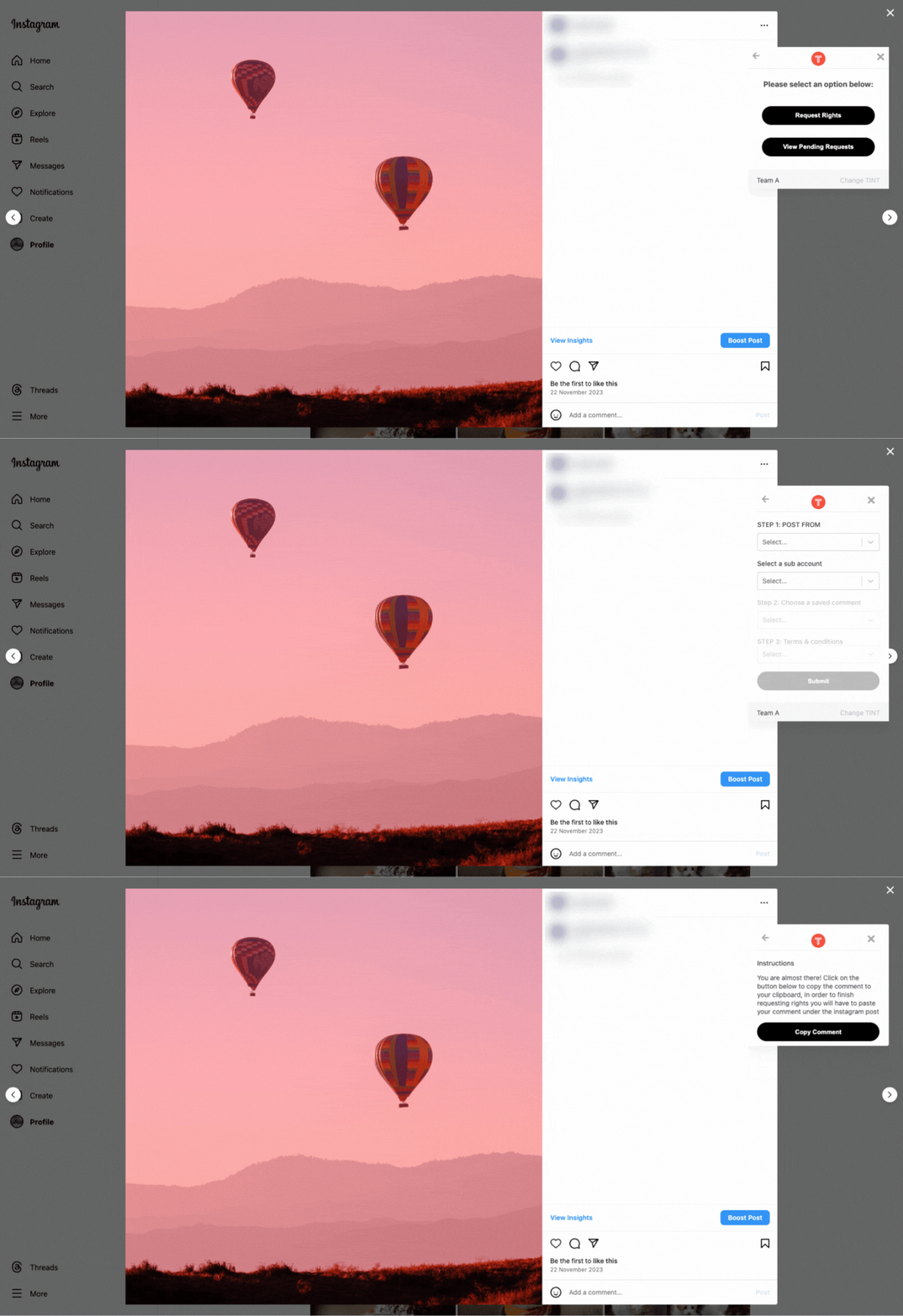
- Go to a post that you would like to request
- Click on the TINT logo
- Check which team (for users that are in more than one team) and the Board you are on before requesting. To change the Board and/or your team, click on Change the Board in the right-hand corner.
- Click on Rights Requests
-
You will see the following:
STEP 1: POST FROM/Select a sub account: Choose which account you want to do the rights request from. This is so it links back to the post and updates it automatically when the post author accepts the request.
Step 2: Choose a saved comment: We have a few pre-populated comments to choose from and any custom comment you have saved, but unlike in the Editor, you won’t be able to do a custom comment from here. If you want to do a custom message, go back to the Editor, follow the instructions above, and come back to your post on Instagram.
STEP 3: Terms & conditions: Click in your T&Cs. If it appears as no option, again you won’t be able to add the Terms and Conditions from here. Go back to the Editor, follow the instructions above to add the T&Cs, and come back to your post on Instagram.
- Click Submit, and you will get the option to Copy Comment.
- Then go to your author’s comment section and copy the comment.
- Now you just need to wait for your author to reply.
- A post is only created in the Editor when the author responds granting rights. If this is the first request processed on the selected Board, it will also generate the feed called Browser Extensions. Rights requests pending through the extension do not appear in the Editor but are available to see from the extension itself, click here to learn how to do this.
How to View Pending Requests
In View Pending Requests, you can view everything you have requested. Please be aware that pending Requests from the Extension do not appear on the Board. Once this gets rights approved, it will disappear from the View Pending Requests list and will appear in the Browser Extension Feed on the Board you picked. You can take a look at the URL by clicking on Review Post on each request.
We are very excited to have you jump in and find that amazing UGC out there waiting for your brand. If you need any help with the Extension, application, or your UGC strategy, please reach out to us at support@trueloyal.com.

Comments
Please sign in to leave a comment.