
In this article, we will cover:
Know how you can create a CTA (Call-to-action) button for your website to guide users towards your goal conversion.
The prerequisite for using any of the JS functions is that the basic integration and authentication JS should be enabled on the page. Only after that JS executes on the page does the JS functions library become available. The library includes CTA (Call-to-action) functions, User details JS and HTML wrappers for JS functions.
The following CTA functionality is available:
- zrl_mi.show_dashboard('show_<activity_id>')
- zrl_mi.show_dashboard('show_<redemption_id>')
- zrl_mi.show_dashboard('show-earn-tab')
- zrl_mi.show_dashboard('show-redeem-tab')
- zrl_mi.show_dashboard('show-history-tab')
- zrl_mi.show_dashboard('show_zrl_terms')
- zrl_mi.dashboard_clicked({container_id: 'zrl_container'})
- zrl_mi.show_raf_popup()
CTA functionality
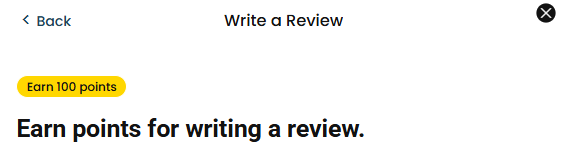
Show a specific activity
zrl_mi.show_dashboard('show_<activity_id>')To replace "activity_id" with the actual activity ID, follow the given example:
zrl_mi.show_dashboard('show_<write_a_review>')You can obtain the activity ID from Activities > Settings in the Admin Console.
This function will bring up the specific activity. All you have to do is add the activity ID in the code.
Show a specific reward
zrl_mi.show_dashboard('show_<redemption_id>')To replace "redemption_id" with the actual redemption ID, follow the given example:
zrl_mi.show_dashboard('show_<reward_a1e91>')You can obtain the redemption ID from Rewards > Settings in the Admin Console.
This function will bring up a specific reward. All you have to do is add the redemption ID in the code.
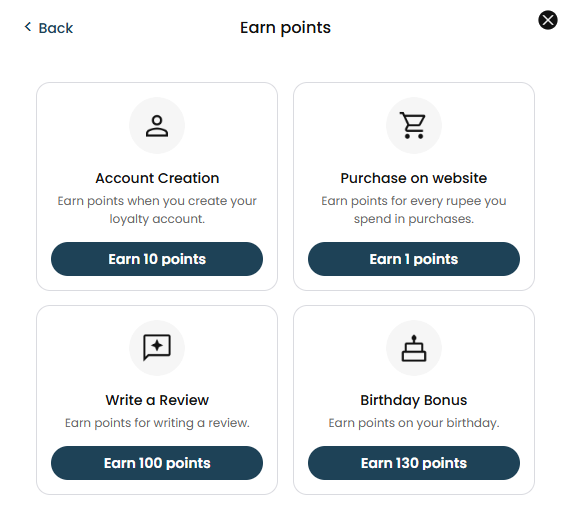
Show the Earn Points tab
zrl_mi.show_dashboard('show-earn-tab')This function will bring up the earn points dashboard.
Show the Redeem tab
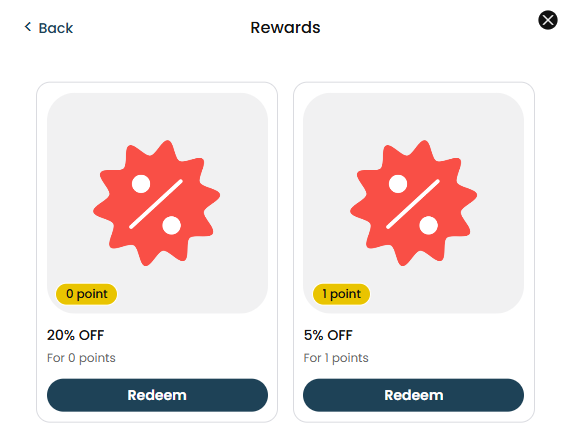
zrl_mi.show_dashboard('show-redeem-tab')This function will bring up the my rewards dashboard.
Show the History tab
zrl_mi.show_dashboard('show-history-tab')This function will bring up the History tab of the loyalty dashboard.
Show the Terms page
zrl_mi.show_dashboard('show_zrl_terms')This function will bring up the Terms page of the loyalty dashboard. Please note that this option uses underscores rather than hyphens, so make sure you copy it exactly as shown above.
Show the full loyalty dashboard
zrl_mi.dashboard_clicked({container_id: 'zrl_container'})You can use this function if you want your CTA to open the whole loyalty dashboard on its overview page, rather than jumping straight to a specific tab. This is handy for a general button such as "View my rewards" or "Join our loyalty program", where you want members to land on the main dashboard and choose where to go from there.
If you use zrl_mi.show_dashboard() instead, the dashboard will always open on a specific tab (such as Earn Points or Redeem), so zrl_mi.dashboard_clicked() is the one to use when you want the overview page.
Note: Please keep container_id set to 'zrl_container' exactly as shown above, as this is the container the loyalty dashboard popup loads into.
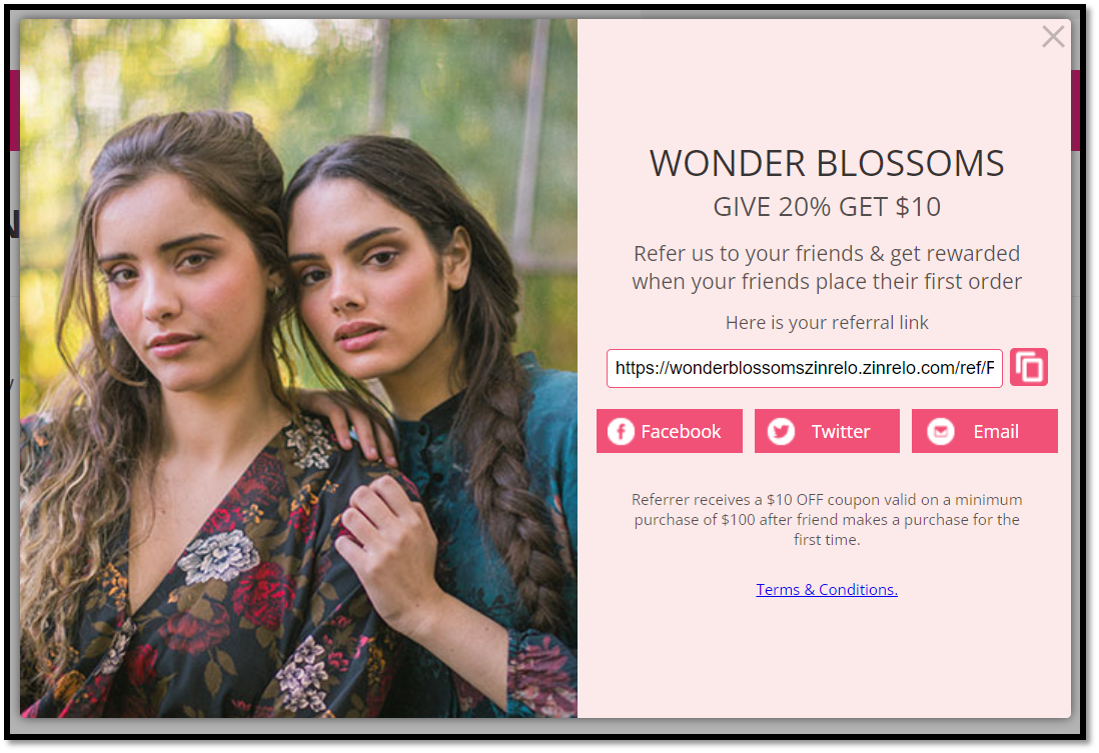
Show the Refer a Friend popup
zrl_mi.show_raf_popup()This function will bring up the referral popup.
Embedded UI elements
We also provide embedded UI elements, which can be used as HTML to bring up various screens within the website.
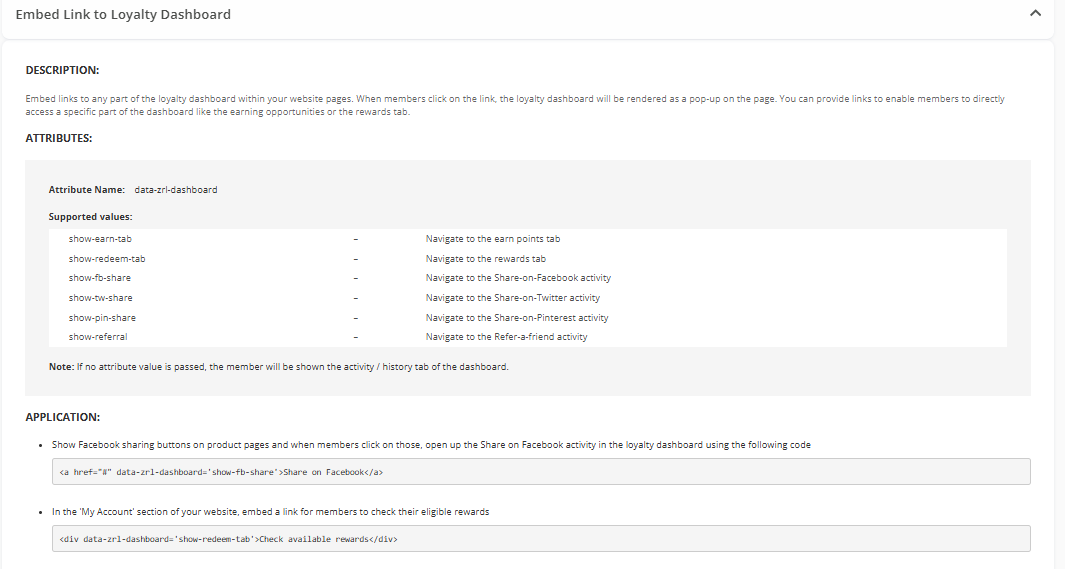
Embed a link to the loyalty dashboard
Embed links to any part of the loyalty dashboard within your website pages. When members click on the link, the loyalty dashboard will be rendered as a pop-up on the page. You can provide links to enable members to directly access a specific part of the dashboard, like the earning opportunities or the rewards tab.
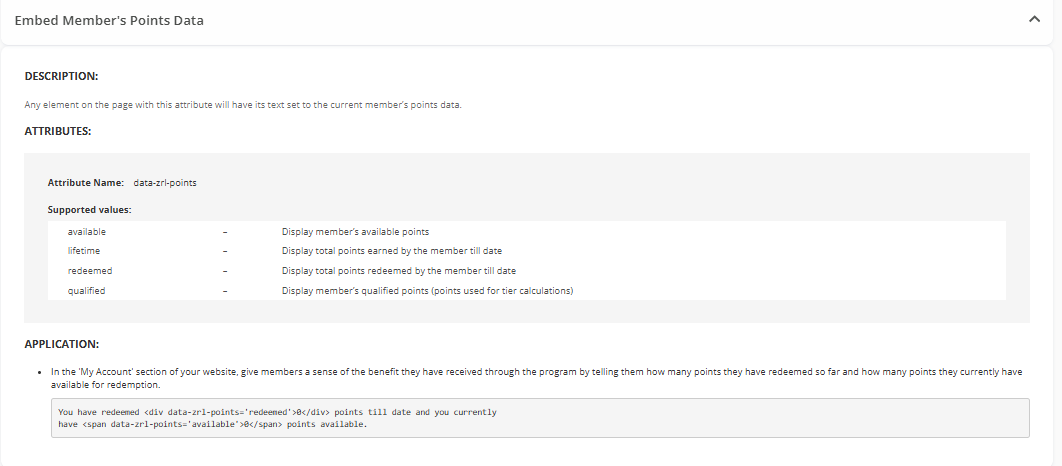
Embed a member's points data
Any element on the page with this attribute will have its text set to the current member's points data.
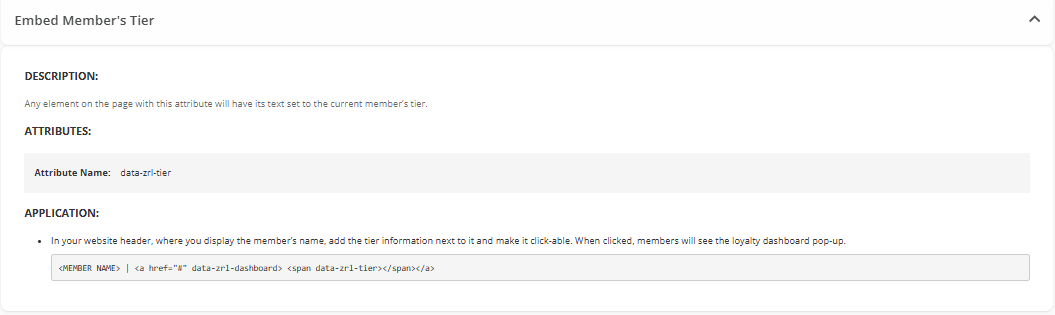
Embed a member's tier
Any element on the page with this attribute will have its text set to the current member's tier.
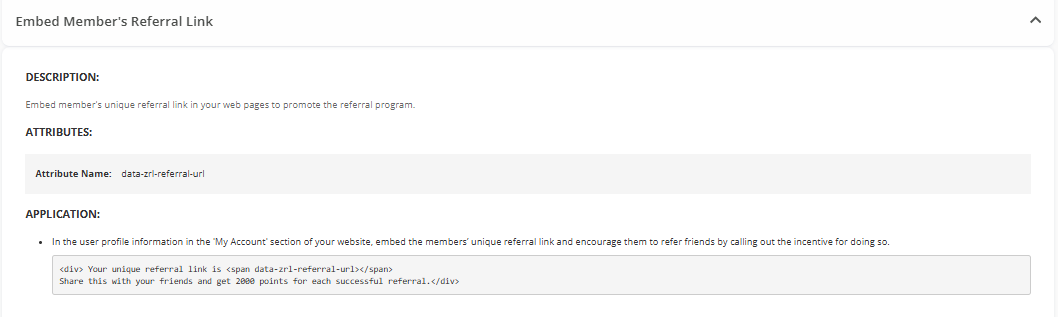
Embed a member's referral link
Embed a member's unique referral link in your web pages to promote the referral program.
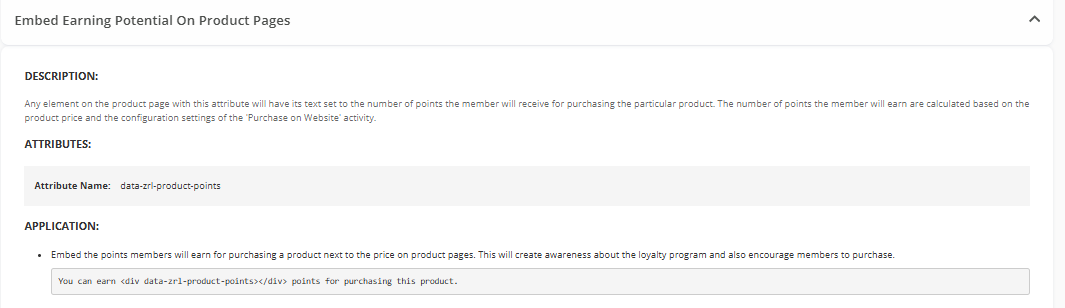
Embed earning potential on product pages
Any element on the product page with this attribute will have its text set to the number of points the member will receive for purchasing the particular product. The number of points the member will earn is calculated based on the product price and the configuration settings of the 'Purchase on Website' activity.
If you have any questions or concerns regarding JavaScript functions, please don't hesitate to contact Technical Support at support@trueloyal.com.
Comments
Please sign in to leave a comment.