
In this article, we will cover:
This article describes how points can be awarded on anniversaries to members signed in to the loyalty program.
Where will I get this information from?
There are two ways to do it:
Option 1: Information can be passed to TrueLoyal via an API. The anniversary date will be stored within TrueLoyal and the activity will get triggered on that date.
OR
Option 2: Request members to add it on the End-user Dashboard.
The anniversary information is collected in the TrueLoyal loyalty dashboard. No information will need to be passed on to TrueLoyal using this option.
On clicking on the Anniversary Bonus Tile >> A pop-up will appear asking you for your anniversary date.
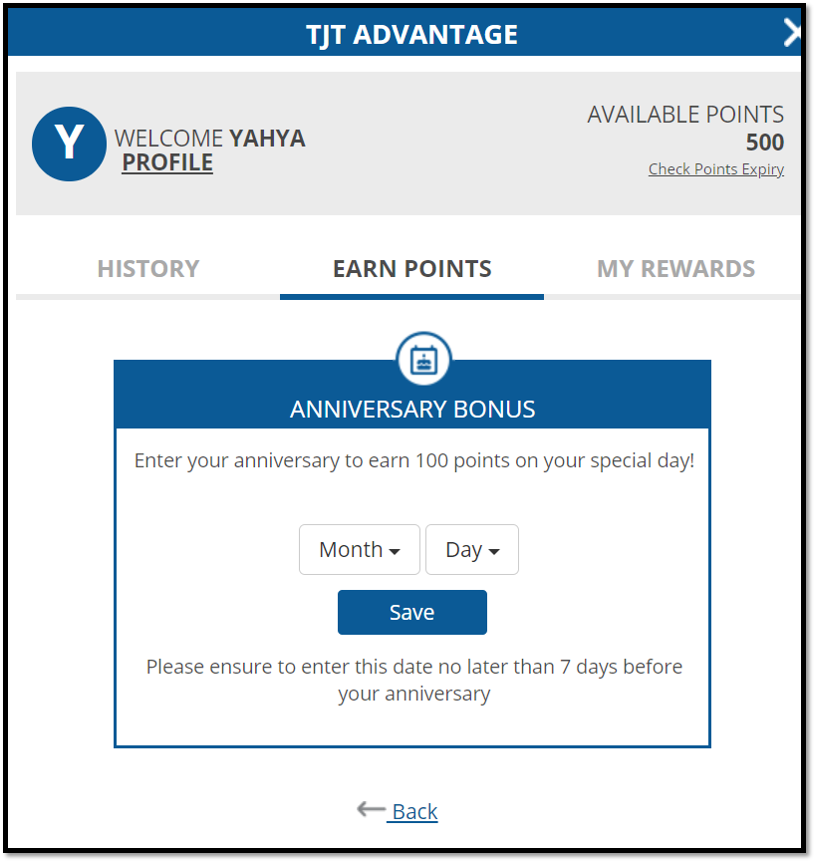
Once this information is entered, TrueLoyal will award points to the member every year on his/her anniversary.
What settings can I make?
Go to: Program Settings >> Activities >> Click on Anniversary edit icon >> Enable the toggle
Settings
- Points: The amount of points you want to give a member for this activity
- Approval type: You can set the approval of point allocation in different ways. It could be:
- Immediately
- Manually (where admin manually approves the request)
- After a fixed duration: Admin can set up a fixed duration of days after which the point will get approved automatically.
- Enable Expiry Override: Transactions for a specific activity can have a different expiry setting. To override the global settings for point expiration of an activity, enable this setting. Select the expiring period from the "Expiry Override Settings" dropdown
- Activity Tile Image: Upload a Tile Image (280 x 280)
- Activity Icon Image: This will be prepopulated with an image URL but can be replaced by uploading a new icon (58 x 58)
- Activity ID: This field cannot be edited for the in-built activities. For custom activities, this field acts as a reference in the API call.
- Show activity in User Dashboard: You can opt if you want to display this activity on the End-user dashboard or hide it.
- Ask for year of anniversary: Check this box if you want your members to provide the year of their anniversary; otherwise, keep it disabled.
Note: If you wish to set the "Enrollment Date as Anniversary Date," please get in touch with your account manager at support@trueloyal.com.
Text Configuration
The admin can set up the text for the activity. This text will be displayed to the end-user via the onsite notification OR end-user dashboard.
The default:
Display Name: Anniversary Bonus
Description: Earn points on your anniversary.
Earn Points Text: Earn {{POINTS}} points
Notification Text : Happy Anniversary!! Here's a small gift of {{POINTS}} points.
Reward Instruction Text - <p class="zn-birthday-text zn-birthday-padding test">Enter your anniversary to earn {{POINTS}} points on your special day!</p>
Save Button Text: Save
Date Validity Instruction Text:<p class="zn-birthday-bottom-text zn-birthday-padding test">Please ensure to enter this date no later than 7 days before your anniversary</p>
Header Content Text: <b>Your Anniversary.</b><br>
Thank You Text: <p class="zn-xsf">Thanks for sharing your anniversary! We'll celebrate you by gifting you {{POINTS}} points on your special day.</p>
Max award frequency error text: Max number of allowed transactions exceeded for this activity. Please try again after a few days
Excluded transaction error text: You are prohibited from performing this action. Please contact customer support for more details.
Manage Rules
One rule with the frequency once a year is hardcoded in the system but you can add other rules as well.
End User Experience
- The member will log in to the website store and navigate to the dashboard.
- Upon logging in, the member will click on the "Earn Points" tab.
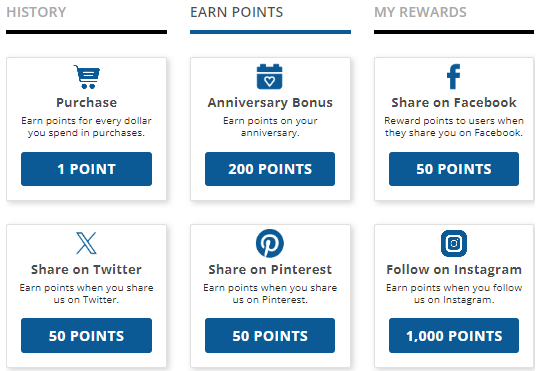
- Next, the member will select the "Anniversary Bonus" activity.
- He will then provide his anniversary information and click on the "Save" button.
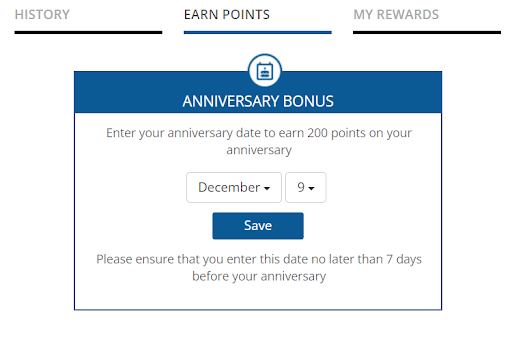
The member will get the reward on his anniversary.
If you have any questions or concerns regarding the Anniversary Bonus activity, please don't hesitate to contact Technical Support at support@trueloyal.com.
Comments
Please sign in to leave a comment.