
In this article, we will cover:
- Plugin-Integrated Features
- Searching for the Bundle
- Verification of Bundle Installation
- Configuration
- Return Triggers and Sources
- Purchase Triggers and Sources
- Configure the Fields to Be Passed in the Purchase API
- Configure the Fields to Be Passed in the Returns API
- Add Extensions Required for User Authentication
- What Fields Are Passed Within the Integration?
This article provides step-by-step instructions for integrating TrueLoyal with NetSuite, covering everything from bundle installation to purchase and return tracking configuration.
Plugin-Integrated Features
The detailed view is described in the table below.
| Requirement | Description | Availability |
|---|---|---|
| Member identifier customization | Is it possible to customize a member's email address with another member identifier, such as 'Customer ID,' 'GUID,' 'Phone Number,' or similar options? | Yes |
| Purchase Tracking | Purchase tracking passes the data for each purchase to TrueLoyal. This enables TrueLoyal to award points for purchases. | Yes |
|
Purchase Tracking on - Shipped/Order/Fulfilled (only completed/paid orders are tracked) |
This is when points are awarded to members - when the product is ordered, shipped, or fulfilled. | Yes |
| Return Tracking | Return tracking passes the data for each return to TrueLoyal. These returns are correlated against an earlier corresponding purchase. This enables TrueLoyal to deduct points for returned purchases. | Yes |
| Ability to push information back to e-commerce platform (native or Zapier) | Ability to pass member information to third-party applications. | Yes |
Note: These features are integrated through plugins. If you'd like to incorporate additional features into your cart beyond these, please reach out to your account manager.
Searching for the Bundle
- Log into your NetSuite account and navigate to Customization > Suite Bundler > Search and Install Bundles.
- Search for TrueLoyal Loyalty Rewards.
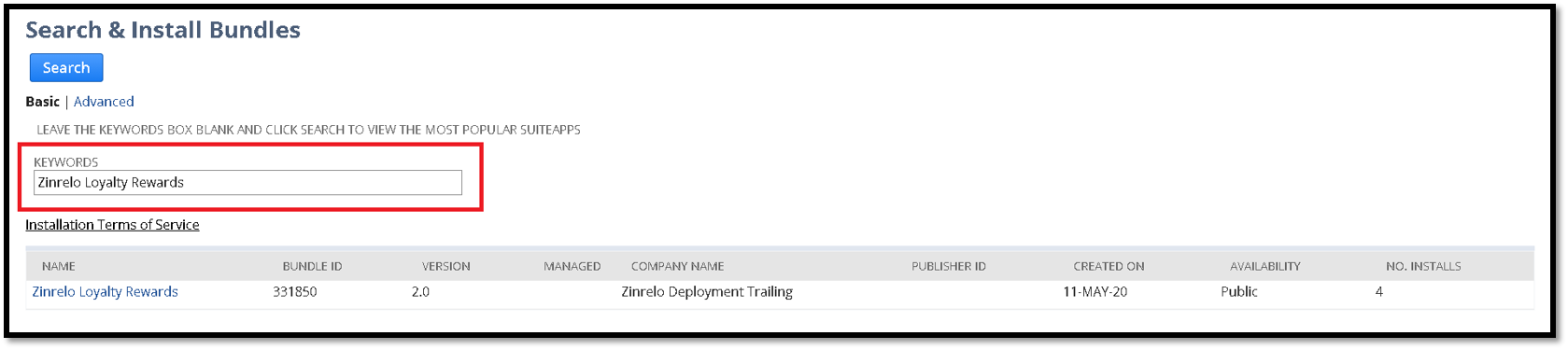
- Click on TrueLoyal Loyalty Rewards from the search results.
- The "Preview Bundle Install" page displays the components available in the bundle. Click Install Bundle.
Verification of Bundle Installation
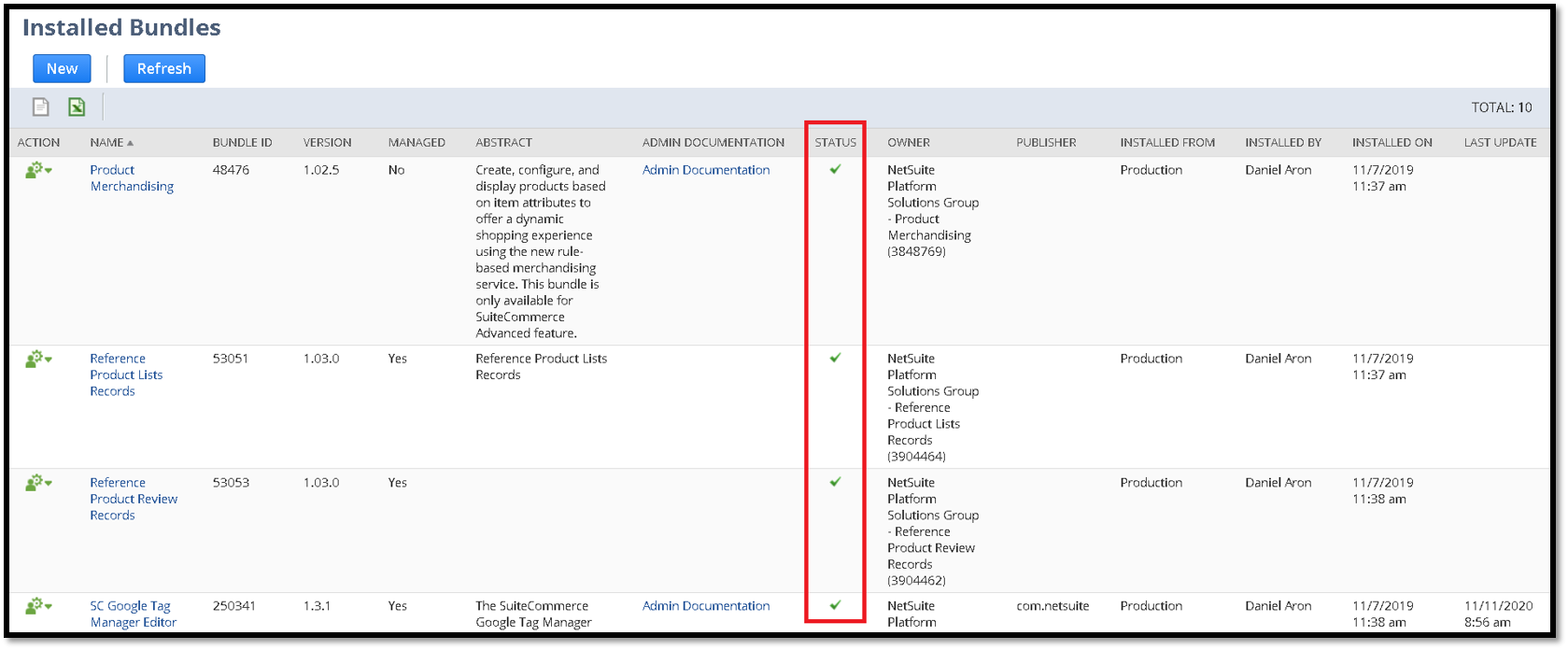
Navigate to Customization > SuiteBundler > Search & Install Bundles > List. After a successful installation, the bundle appears in the "Installed Bundles" list. The status column should show a tick symbol, which indicates that the bundle installation is complete.
Configuration
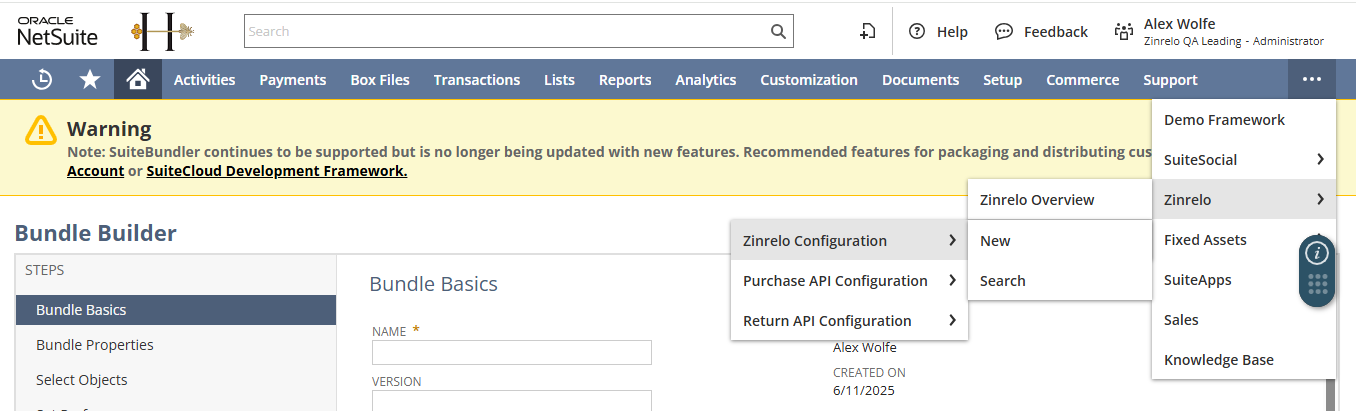
- Once the bundle is installed, a TrueLoyal menu is added to NetSuite. To view it, navigate to TrueLoyal > Configuration > TrueLoyal Configuration > New.
- As part of the setup, the following fields need to be configured/mapped.
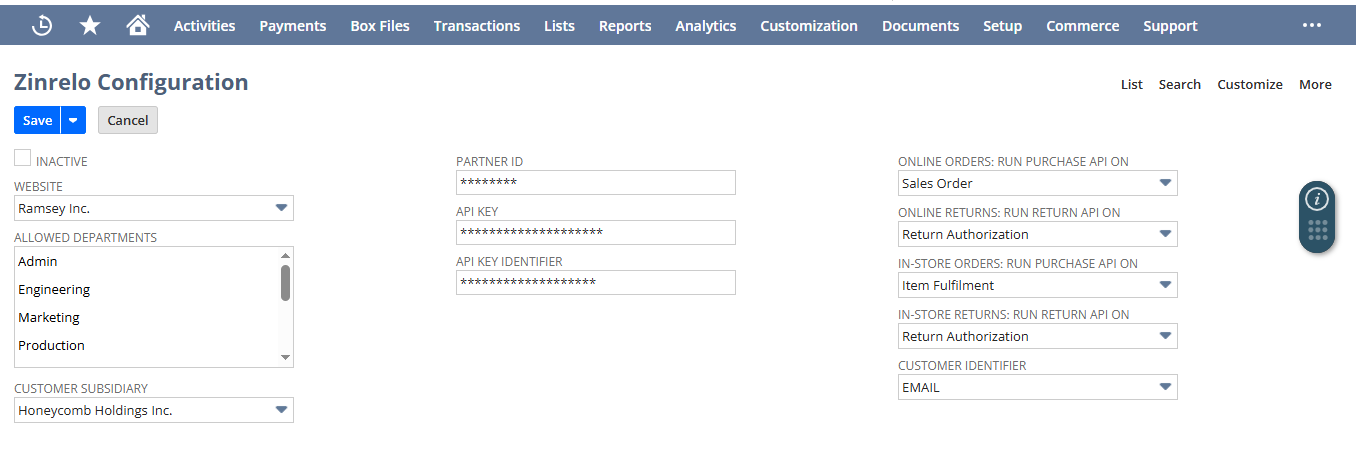
Website: This dropdown field populates all the available websites from the account. Select the website you're integrating TrueLoyal with and configure the rest of the fields accordingly.
Allowed Departments: This dropdown field populates all the available departments from the account. Select the departments for which you want to track purchases.
Customer Subsidiary: Select the relevant subsidiary.
Partner ID and API Key: To find your Partner ID, go to General >> Settings. For the API key, navigate to General >> API Keys and select the API key you created for this purpose.
Note: The API Keys section under General is only visible to admins with full access.
For instructions on generating API keys, please refer to this document.
Online Orders: Run Purchase API On: Set the trigger upon which the purchase API is called to award points for online orders. The options are Sales Order, Item Fulfilment, Cash Sale, and Invoice. Customers usually set this up on Sales Order.
Online Orders: Run Return API On: Set the trigger upon which the return API is called to deduct points. The options available are Return Authorization, Item Receipt, Cash Refund, and Credit Memo. Most customers set this up on Return Authorization.
Configure similar values for in-store orders if this applies to you.
Note: The integration enrolls a member in TrueLoyal only when they make their first purchase, not when they sign up on the website.
Return Triggers and Sources
| Transaction | Created From |
|---|---|
| Return Authorization | Sales Order |
| Item Receipt | Return Authorization |
| Cash Refund | Return Authorization |
| Credit Memo | Invoice |
Note: Our API tracks returns only when the transaction is created from the sources listed above.
Purchase Triggers and Sources
| Transaction | Created From |
|---|---|
| Sales Order | Sales Order |
| Item Fulfillment | Sales Order |
| Cash Sale | Sales Order |
| Invoice | Invoice |
Note: Our API tracks purchases only when the transaction is created from the sources listed above.
Configure the Fields to Be Passed in the Purchase API
- Navigate to TrueLoyal Configuration > Purchase API Configuration > New.
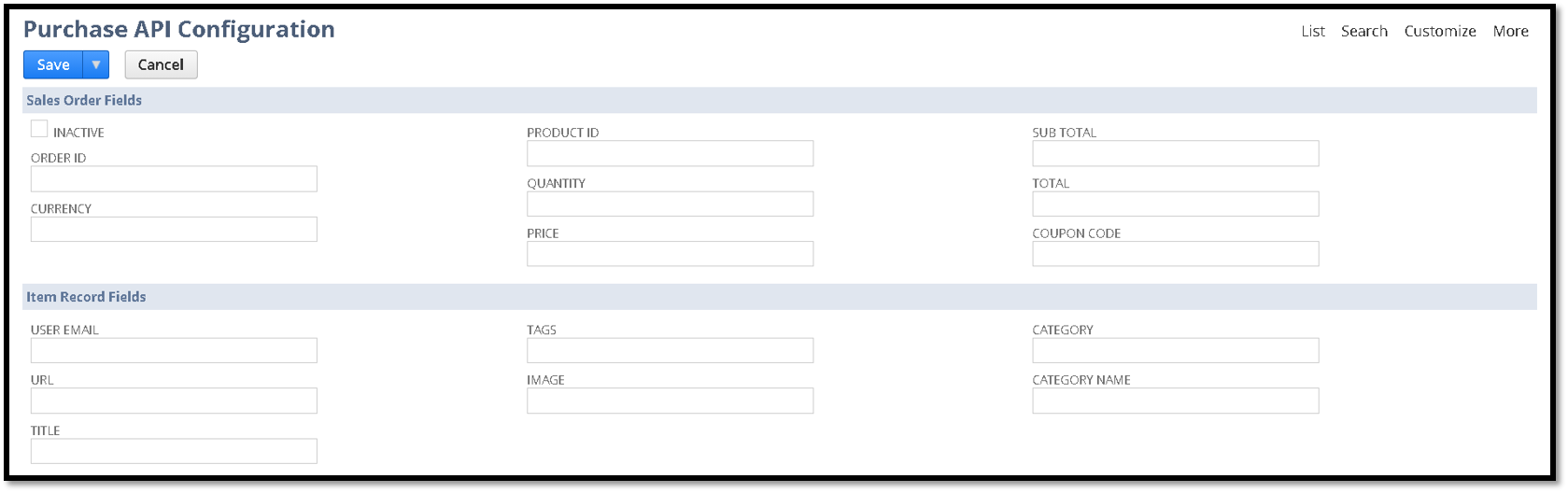
Three sections of fields need to be configured for this API.
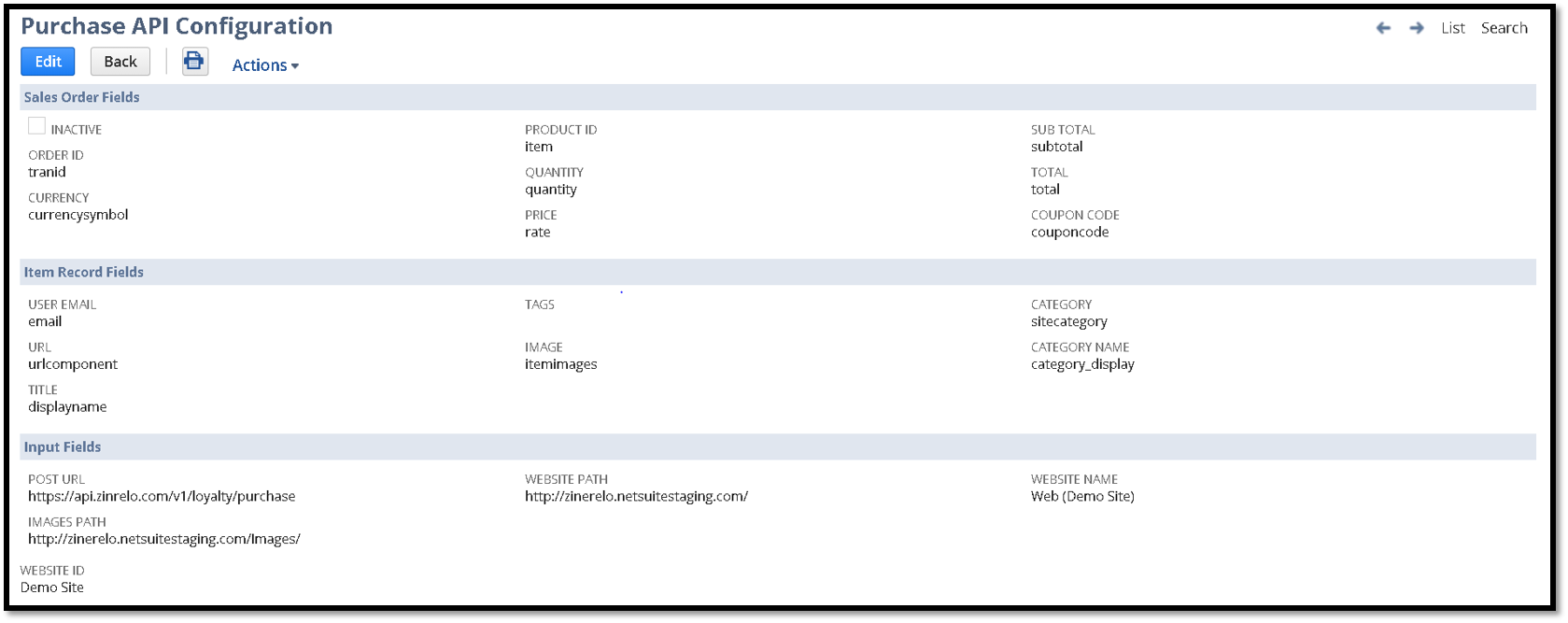
- The internal IDs from the Sales Order must be mapped to the fields that are sent to TrueLoyal. Here is an example:

- Configure the Item record details from the Line-level fields in the Sales Order. Here is an example:

- Under the third section, enter the following details:
-
POST URL:
https://api.zinrelo.com/v1/loyalty/purchase - Website Name: Enter the source (available in the Sales Order) value of an order placed from the current website. You can get this from any Sales Order.
-
POST URL:

- Images Path: Enter the URL of the path where images are stored. Here is an example of a complete Purchase API configuration:
Configure the Fields to Be Passed in the Returns API
- Navigate to TrueLoyal Configuration > Returns API Configuration > New. There are two sections available on the Returns API Configuration, each containing the relevant record fields information.
- Return Authorization Fields: This section lists the fields available on the Return Authorization record. Update the internal ID of each field in the Return Authorization Fields section, as shown in the example below:
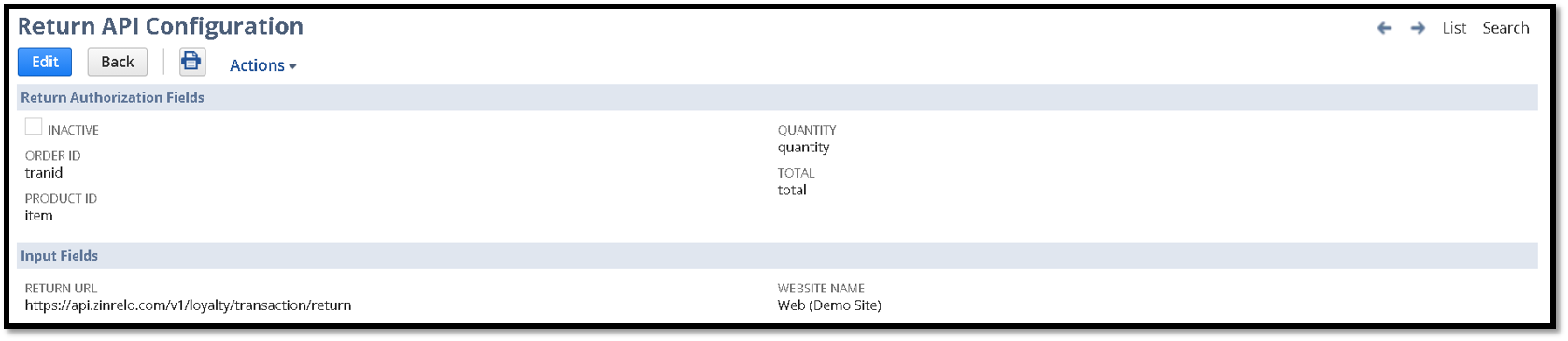
- In the Input Fields section, add the following values:
-
Return URL:
https://api.zinrelo.com/v1/loyalty/transaction/return - Website Name: Enter the source (available in the Sales Order) value of an order placed from the current website, the same as in the Purchase API configuration.
-
Add Extensions Required for User Authentication
Note: This step is only needed if you're using NetSuite SCA.
- At this time, the bundle installation can't automatically install the extension required for user authentication in TrueLoyal.
- Please give access@trueloyal.com temporary access to your NetSuite account so the extension can be installed.
- Once the extension is installed, the NetSuite configuration is complete.
Testing
- Activate your loyalty program from the TrueLoyal Admin console.
- Navigate to your website. You'll notice a button in the bottom-left corner.
- Create an account, or log into your existing account, by clicking this button.
- You'll now be logged in to your loyalty dashboard.
- Make a purchase on the website, then approve the sales order.
- When you view your loyalty dashboard, you'll see that you've been awarded points for the purchase.
Note: With bundle installation, purchase and return tracking can be done. If you need the loyalty data of members in your ERP backend, data syncing is required between TrueLoyal and NetSuite. This gives you access to loyalty data in your NetSuite ERP and also enables redemption and transaction tracking right inside the ERP.
If you need two-way syncing between TrueLoyal and NetSuite for ERP purposes, please reach out to your account manager at support@trueloyal.com.
What Fields Are Passed Within the Integration?
TrueLoyal calls the Award Points API and the Returns API from NetSuite. The payload for this integration is shown below:
{
    "user_email": "test@gmail.com",
    "total": 1222,
    "subtotal": 1222,
    "order_id": "14",
    "currency": "USD",
    "coupon_code": "",
    "products": [
        {
            "category": "Home",
            "img_url": "http://zinerelo.netsuitestaging.com/Images/Nested-Coffee-Tables_01.jpg",
            "price": 199,
            "product_id": "10",
            "quantity": 1,
            "tags": "",
            "title": "Nested Coffee Tables",
            "url": "http://zinerelo.netsuitestaging.com/Nested-Coffee-Tables"
        },
        {
            "category": "Shop",
            "img_url": "http://zinerelo.netsuitestaging.com/Images/Ottoman-Coffee-Table-Hybrid_01.jpg",
            "price": 678,
            "product_id": "9",
            "quantity": 1,
            "tags": "",
            "title": "Ottoman Coffee Table Hybrid",
            "url": "http://zinerelo.netsuitestaging.com/Ottoman-Coffee-Table-Hybrid"
        },
        {
            "category": "Home",
            "img_url": "http://zinerelo.netsuitestaging.com/Images/Polished-Concrete-Table_01.jpg",
            "price": 345,
            "product_id": "8",
            "quantity": 1,
            "tags": "",
            "title": "Polished Concrete Table",
            "url": "http://zinerelo.netsuitestaging.com/Polished-Concrete-Table"
        }
    ]
}
The following data is sent from TrueLoyal to NetSuite:
- Referral Code
- User Status
- Is Opted Out
- Points Expiration Date
- Points Expired
- Points Earned
If you have any questions or concerns regarding the NetSuite integration, please don't hesitate to contact Technical Support at support@trueloyal.com.
Comments
Please sign in to leave a comment.