
In this article, we will cover:
Integrating Zendesk with TrueLoyal enhances both customer support and loyalty management, giving your team a more seamless view of each customer. By pulling in loyalty data from TrueLoyal, such as loyalty status, purchase history, and preferences, support agents can provide tailored responses and solutions. Insights from TrueLoyal's loyalty data also help you anticipate customer needs and address potential issues proactively, rather than reactively.
Integration process
TrueLoyal needs credentials generated from a Zendesk API token to enable the integration.
- Generate an API token: API tokens are managed in the Admin Center at Apps and integrations > APIs > Zendesk API. See How to create an API token below.
- Generate Base64 credentials using the API token: Follow the steps in Zendesk's help article to create credentials: Zendesk API security and authentication.
Once the credential is generated, please share it with your account manager at support@trueloyal.com.
If you run into any trouble generating the credential, share the following details with your account manager and we'll generate it for you:
- API token
- Admin email address
- Zendesk domain URL
How to create an API token
Click the Settings tab, then the "Go to Admin Center" link. This will take you to the Admin Center.
- Navigate to Apps and integrations > APIs > Zendesk API.
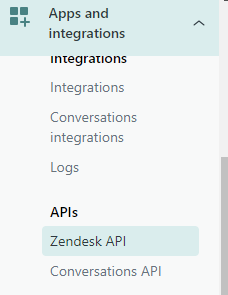
- Enable the Token access toggle.
- Click Add API token.

- Enter a token description (optional), copy the API token, and save it.
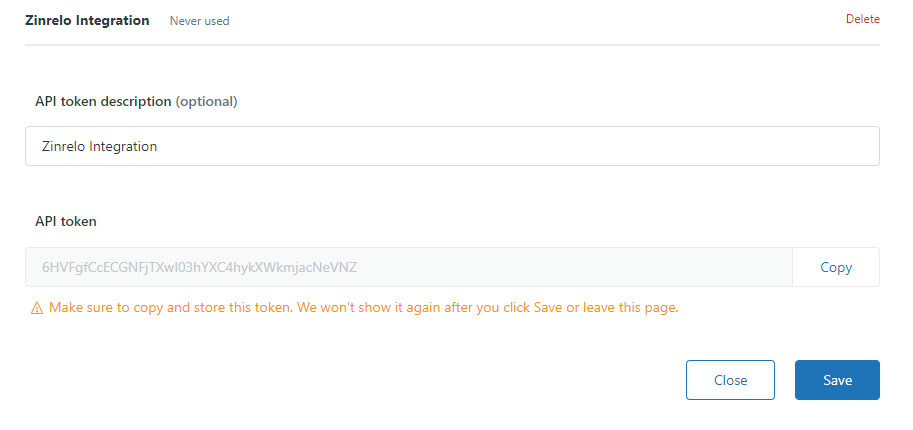
Please note: Make sure to copy and store this token somewhere safe. It won't be shown again after you click Save or leave the page.
Mapping loyalty member data
Once the integration is enabled, TrueLoyal starts syncing the loyalty member attributes below to Zendesk. These fields need to be created manually in Zendesk.
| Attributes | Field Type | Description |
|---|---|---|
| zrl_member_available_points | Decimal | Total available points against the member. |
| zrl_member_member_id | Text | Unique Member ID of Member. |
| zrl_member_member_status | Text | Status of the Member such as active, block, deleted, opted out. |
| zrl_member_number_of_purchases | Number | Number of purchases made by the member. |
| zrl_member_number_of_redemptions | Number | Number of redemptions made by a member. |
| zrl_member_enrollment_date | Text | The date when a Member enrolled in the Loyalty Program. |
| zrl_member_last_modified_date | Text | The last date when a Member's loyalty data has been modified. |
| zrl_member_lifetime_points_earned | Decimal | Total lifetime points earned by a member till date. |
| zrl_member_lifetime_points_expired | Decimal | Total lifetime points expired for a member till date. |
| zrl_member_lifetime_points_redeemed | Decimal | Total lifetime points redeemed after redeeming a reward by a member till date. |
| zrl_member_lifetime_points_deducted | Decimal | Total lifetime points deducted against the member till date. |
| zrl_member_referral_url | Text | Unique referral URL of member used for refer-a-friend events. |
| first_name | Text | First name of the member. |
| Text | The email address of the member. | |
| phone | Text | The phone number of the member. |
| last_name | Text | Last name of the member. |
| zrl_member_first_purchase_date | Text | The date on which the member made a first purchase. |
| zrl_member_last_purchase_date | Text | The date on which the member made a last purchase. |
| zrl_member_loyalty_tier_name | Text | Current loyalty tier name in which member exists currently. |
| zrl_member_loyalty_tier_id | Text | Current loyalty tier ID in which member exists currently. |
| zrl_member_qualified_points | Decimal | The points qualified by a member. These qualified points are considered to check the eligibility of the member for tier upgrade, tier downgrade, etc. |
Follow the steps below to create the loyalty attribute fields in Zendesk.
- Go to the Admin Center.
- Navigate to People > Configuration > User fields.
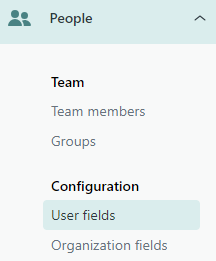
- Click Add field.
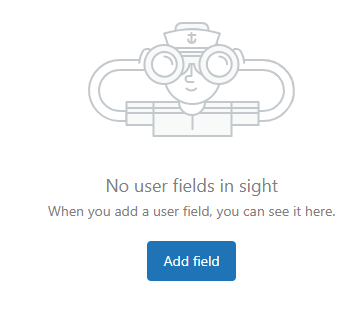
- Select the appropriate field type and add the attribute to Zendesk. Attributes are listed in the table above.
Please make sure these fields are set up correctly so TrueLoyal can sync the loyalty member attributes to Zendesk seamlessly.
If you have any questions or need further assistance, please contact your account manager at support@trueloyal.com.
Loyalty member data is updated or synced only when points change or a member's tier changes. This happens in the following scenarios:
- When points are awarded
- When points are deducted
- When points are redeemed
- When points expire
- When a tier is upgraded or downgraded
If you have any questions or concerns regarding Zendesk Integration, please don't hesitate to contact Technical Support at support@trueloyal.com.
Comments
Please sign in to leave a comment.