
Introduction
A webhook is simply an HTTP callback, an HTTP post that occurs when something happens. Simply put, it is a simple event-notification via HTTP POST. Webhooks allow you to build or set up integrations that subscribe to certain events on the TrueLoyal Loyalty Platform. When one of those events is triggered, we'll send an HTTP POST payload to the configured URL. Webhooks are aimed at enabling our merchants to extend the functionality provided by TrueLoyal’s loyalty program by listening to the events and adding additional functionality like CRM integrations, email notifications, and integrations with wallets or account credits, etc.
Webhook Configuration
To configure a webhook, follow these steps:
- Navigate to the Notifications section and click on "Webhooks".
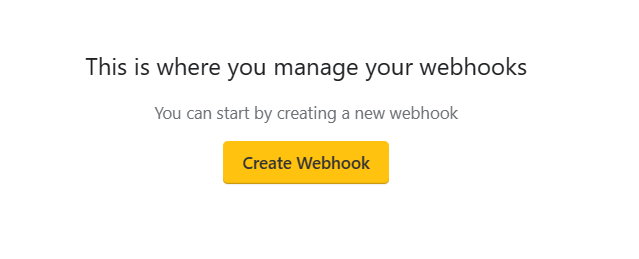
- Click on the "Create Webhook" button. This will open the webhook configuration page.
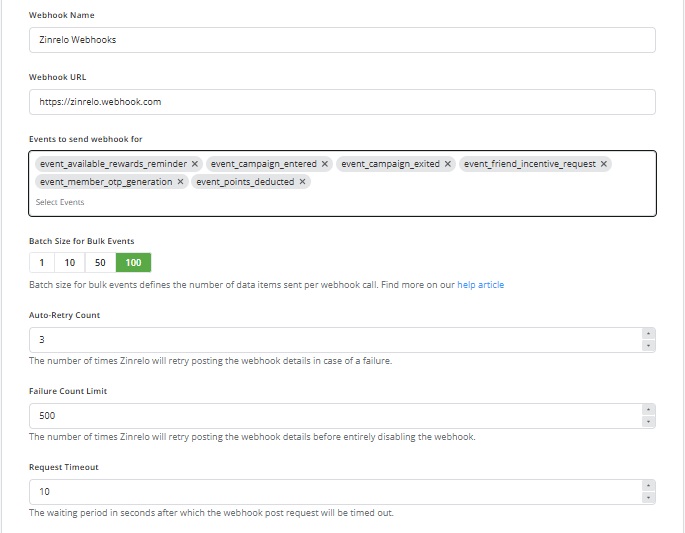
On the configuration page, you will find the following fields:
| Sr.No | Event Name | Description |
|---|---|---|
| 1. | Webhook Name | Name your webhook. |
| 2. | Webhook URL | Endpoint where events will be posted. |
| 3. | Secret Key | Webhook secret key. |
| 4. | Events to send Webhook for | Events for which you want to receive notifications for: Transaction events, Member events, Referral events, System events and Campaign events. |
| 5. | Batch size for bulk events | Select the batch size of the bulk events you receive. |
- Once you have filled in the necessary information, click on the "Save Webhook" button to save your webhook configuration.
Receiving a Webhook Notification
The body of the request will contain a valid JSON payload. The request body will have a batch payload that will support the delivery of more than one event in a single HTTP request, with member and transaction data for each.
Here is what a complete JSON payload for a batch of events looks like:
   {
   "request_id": "61f11851bdfb9aac526d0c70",
   "total_count": "2",
   "created_date": "12/29/2021 16:47:41",
   "events": [
       {
           "id": "61f1dfbd0c709aac1851b526",
           "event_type": "event_points_earned",
           "data": {
               "member_info": {
                       <The entire member object>
               },
               "transaction_info": {
                       <The entire Award transaction object>
               }
           }
       },
       {
           "id": "507f1f77bcf86cd799439011",
           "event_type": "event_points_earned",
           "data": {
               "member_info": {
                       <The entire member object>
               },
               "transaction_info": {
                       <The entire Award transaction object>
               }
           }
       }
   ]
}
Note: The event data will be different based on different event types.
Based on the event type, the payload will contain a batch of user data or transaction data. In the case of events: such as user enrollment, the payload will contain the batch of user objects. Whereas, in the case of events like points awarded, points redeemed, and points deducted, the payload will contain the batch of loyalty transaction details.
Payload Properties
Here are the property descriptions available in the payload:
| Property | Description |
|---|---|
| request_id | A unique identifier for the webhook. |
| total_count | The total count of event responses. |
| created_date | The date when the webhook was created. |
| events | A list or array of events associated with it. |
Customize the Batch Size
The batch size defines the number of user or transactional data items that will be propagated when you call out any webhook event.
In the case of bulk events, you can customize the total count of batch payloads from the admin console.
Go to Notifications >> Webhooks
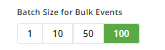
From here, you can select the batch size for bulk events.
Responding to a Webhook
Your endpoint should return a 200 HTTP status code to acknowledge receipt of the event. Any code other than the 200 HTTP status code is considered a failure, and the event will be fired again with 5-minute intervals until the 200 HTTP status code is received or the maximum number of retry attempts has been reached (the default retry attempt limit is 5). Get in touch with your Customer Success Manager to configure the settings.
Best Practices
If your Webhook script performs complex logic, or makes network calls, it is possible that the request would time out before TrueLoyal sees the script’s complete execution. For this reason, you may want to have your Webhook endpoint immediately acknowledge receipt by returning a 200 HTTPS status code and then perform the rest of its duties.
Webhook endpoints may occasionally receive the same event more than once. We advise you to guard against duplicated event receipts by logging the events you have processed against the event ID and then not processing already-logged events.
Webhook Security and Authentication
Before you respond to a webhook, you need to verify that the webhook was sent from TrueLoyal. TrueLoyal supports hash-based message authentication code (or HMAC). It creates the signature based on the SHA512 hash of the request body and nonce.
📘
Note:
Each webhook request includes x-zinrelo-signature and nonce in headers. This x-zinrelo-signature is generated using the shared webhook secret key with the data sent in the request along with nonce.
The nonce will contain the value of Epoch Unix Timestamp in milliseconds.
This allows you to verify that the events were sent by TrueLoyal, not by a third party.
Compute HMAC
Using data in request body and nonce sent in header you can compute HMAC. Following is a code example in python.
# get signature and nonce sent the request headers
signature = request.headers.get('x-zinrelo-signature')
nonce = request.headers.get('nonce')

# get request body in regular string
request_body = str(request.data, 'utf-8')

# build message using request body and nonce
message = "{}:{}".format(request_body, nonce)

# generate hexdigest
computed_signature = hmac.new(
				                secret_key,                  # shared webhook secret key
				                message.encode("utf-8"),     # message encoded in utf-8
				                hashlib.sha512               # sha512 algorithm to generate hmac
					            ).hexdigest()

# compare computed signature
hmac.compare_digest(computed_signature, signature)
Webhook Settings
Webhook settings can be configured in the Notifications section of the TrueLoyal store.
- Go to Notifications >> Select the Webhook.
- Click on the "Action" button.

- Disable- Click to disable the webhook.
- Delete- Click to delete the webhook.
Event Types
TrueLoyal supports a total of 24 events that can be used to track and manage various activities within the loyalty program. These events include:
| Sr.No. | Event Name | Event Type | Description |
|---|---|---|---|
| Member Enrollment Event | event_member_enrol | When a new user enrolls in the loyalty program. | |
| Points Earned Event | event_points_earned | When points are awarded (approved) to a user. | |
| Points Redeemed Event | event_points_redeemed | When a user redeems points. | |
| Points Deducted Event | event_points_deducted | When points are deducted from a user’s loyalty points balance. | |
| Tier Upgrade Event | event_member_tierupgrade | When a customer upgrades to a higher tier. | |
| Tier Downgrade Event | event_member_tierdowngrade | When a customer downgrades to a lower tier. | |
| Points Expired Event | event_points_expired | When customer's points expire. | |
| Friend Incentive Request Event | event_friend_incentive_request | When a coupon is issued to the referrer for a successful referral. | |
| Member Updated Event | event_member_update | When the member's attributes are changed. | |
| Referral link shared via Email or Social Channels Event | event_referral_link_share | When the referral link is shared through email or via social channels. | |
| Referral Successful Event | event_referral_success | When the referred friend clicks on the referral link and makes his first purchase. | |
| Points Rejected Event | event_points_rejected | When a user's pending points are rejected in moderation. | |
| Member Deleted Event | event_member_delete | When a user is deleted from the admin console. | |
| Winback Offer Event |
event_winback_offer | When a user has been inactive for an extended period of time. | |
| Available Rewards Reminder Event | event_available_rewards_reminder | When a user earns enough points to redeem rewards. | |
| Member OTP Generation Event | event_member_otp_generation | When a user requests an OTP for user authentication into the Zinrelo loyalty program. | |
| Points Expiration Reminder Event | event_points_expiration_reminder | When a user's points are about to expire. | |
| Rewards within reach Reminder Event | event_rewards_within_reach_reminder | When a user earns 80% of the required points to redeem the reward. | |
| Campaign Entered | event_campaign_entered | When a member or members enter a campaign. | |
| Campaign Exited | event_campaign_exited | When a member or members exit a campaign. |
Each event serves a specific purpose and allows you to track and respond to different actions taken by program members. To learn more about these events and their specific usages, click here. This will provide you with detailed information on how to utilize these events effectively within the TrueLoyal loyalty program.
Multiple Webhooks
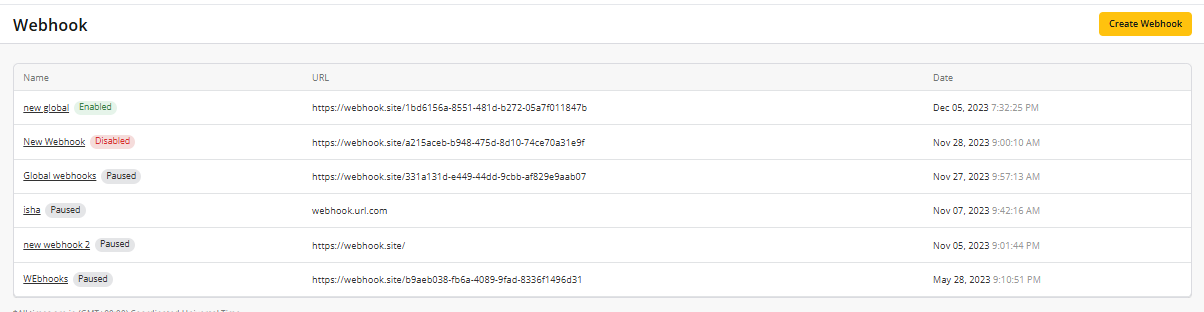
With multiple webhooks, you can designate specific endpoints or URLs for different events or categories of events.
In the context of managing multiple events, you have the option to create up to 10 webhooks, each with a unique URL.
Webhook Status
The webhook status in the system can be classified into three categories:
- Enabled: This indicates that the webhook is currently active and running, ready to receive and process events.
- Paused: When a webhook experiences errors or failures during event processing and reaches a specific pre-defined threshold of failures, it will be automatically paused. While paused, the subsequent events will be marked as failed within the system and no further attempts will be made to send events to the specified webhook URL.
- Disabled: A webhook that is no longer needed or has been deprecated can be disabled. Disabling a webhook ensures that it no longer receives or processes any event.
All paused and disabled webhook can be enabled by clicking on the "Enable Webhook" button.
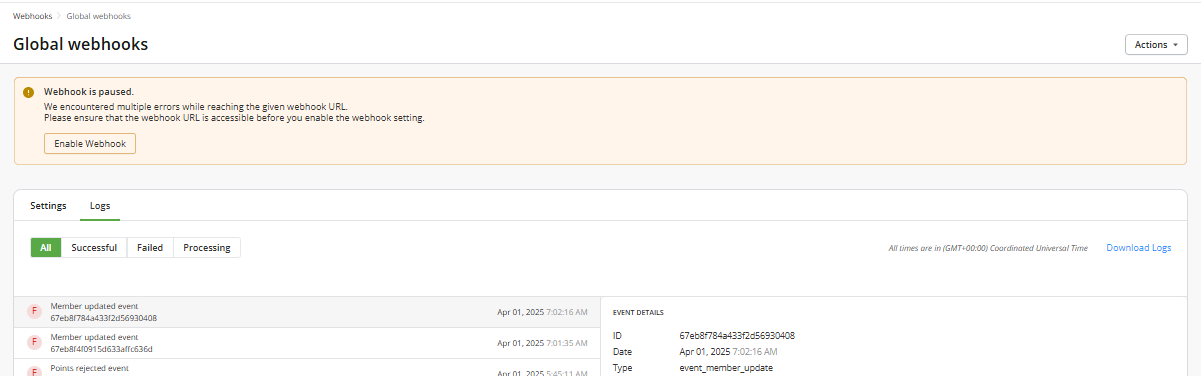
Note: You have the option to manually retry a failed webhook. The steps to retry the webhook depend on its current stage:
- If the webhook is in a paused stage, you need to enable it first.
- If the webhook is already active, you can directly attempt to retry it without any additional enabling steps.
For every failed or paused webhook request, TrueLoyal will send out emails to administrators.
How to manually retry failed webhook?
If an event fails, it will be automatically retried at five-minute intervals until either the server responds with a 200 HTTP status code or the pre-defined number of retry attempts has been reached.
If the event continues to fail, you can manually retry the webhook by following these steps:
- Go to the Webhook Logs section.
- Select the "Failed" tab.
- Identify the specific failed events you want to retry by checking the corresponding checkboxes next to each event.
- Once you have selected the desired failed events, locate the "Retry Selected Logs" button and click on it.
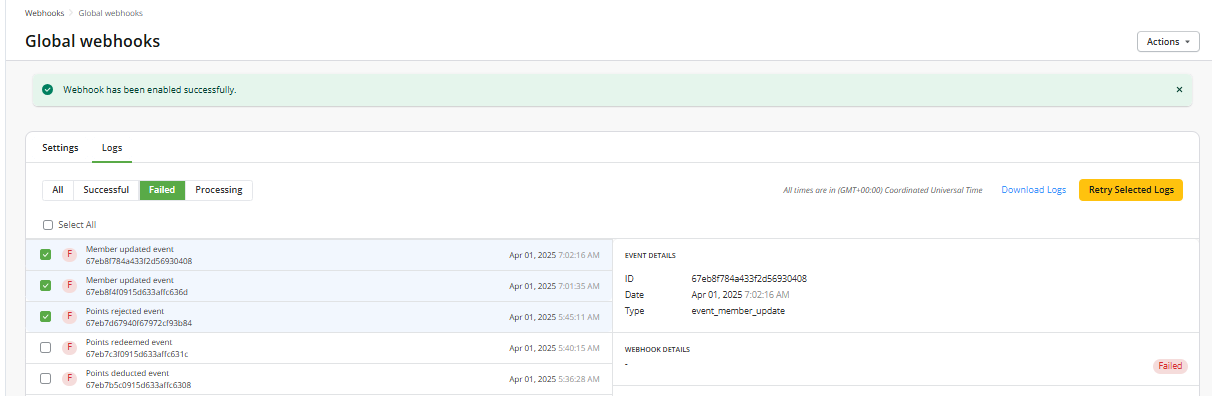
However, before enabling a paused webhook, it is crucial to rectify all the errors associated with it. This ensures that the webhook functions correctly and can process events without encountering additional issues.
Comments
Please sign in to leave a comment.