
Welcome to Trueloyal's API documentation. The API is organized around REST. This document lists all the available API endpoints.
You can view code examples in the area to the right, and you can also try live API calls by entering required parameters.
📘
This is the newest version of the Trueloyal API. If you are still using an older version, click here.
For authenticating an API call in Admin API, you have to send your Partner ID, and an API Key in the HTTP header of each API request.
Admin APIS
API Authentication
To access Partner ID, and the API Key, please follow the steps given below:
Partner ID
- Login to the admin console.
- Navigate to General >> Settings, to find your Partner ID.

API Key
- To obtain an API key, navigate to General >> API keys.
- From the list of API keys, select the one you created for calling Trueloyal endpoints.

For instructions on generating the API key, refer to this help document.
Send the keys in the HTTP header of each API request as given below:
'api-key': '<your-api-key'
'partner-id' : '<your-partner-id>'
API Status Codes
For the response, we can have the following structure in case of an error:
Status Codes
This will be a high-level status code from the following:
| Code | Title | Description |
|---|---|---|
| 200 | Ok | The request was successful. |
| 400 | Bad Request | Bad request. |
| 401 | Unauthorized | Your API key is invalid. |
| 404 | Not Found | The resource does not exist. |
| 500 | Internal Server Error | An error occurred with our API. |
| 503 | Service Unavailable | Service Unavailable. |
Error Codes
This will be the error codes of the following type:
| Status Code | Error Code | Message |
|---|---|---|
| 200 | UNABLE_TO_UPLOAD_PHOTO | Unable to upload the photo. Please try again later. |
| 400 | ATTRIBUTE_NOT_UNIQUE | IdParams name passed is not a unique attribute. |
| 200 | MEMBER_ID_ALREADY_IN_USE | Member ID already in use. |
| 200 | INVALID_MEMBER_STATUS | Invalid member status. |
| 200 | MEMBER_BLOCKED | Member has been blocked. |
| 200 | MAX_AWARDS_EXCEEDED | Maximum award limit exceeded. |
| 200 | INVALID_AMOUNT_TO_DEDUCT | Not enough points to deduct. |
| 400 | INVALID_JSON | Invalid JSON format. |
| 400 | INVALID_REQUEST | Invalid request: unsupported Content-Type [content-type]. |
| 200 | INCORRECT_MEMBER_ID_PASSED | Incorrect Member ID passed. |
| 200 | STORE_INACTIVE | Store is not active. |
| 200 | MEMBER_DELETED | Member record has been deleted. |
| 200 | EXCLUDED_TRANSACTION | Points could not be awarded because exclusion rule was applied. |
| 404 | TRANSACTION_DOES_NOT_EXIST | Transaction does not exist. |
| 500 | INTERNAL_SERVER_ERROR | Internal server error. |
| 400 | INVALID_REQUEST_PARAMETER_VALUES | Invalid request parameter value. |
| 200 | INVALID_PHOTO | Invalid file type or file size. Please make sure uploaded file type is JPG, JPEG, or PNG. and file size should be less than 10MB. |
| 200 | PAUSED_ACTIVITY | Activity is in paused state. |
| 400 | ID_PARAM_NAME_NOT_FOUND | IdParams name passed does not exist. |
| 401 | ERROR_UNAUTHORIZED | Some error occurred while authenticating your account at Trueloyal. Please verify your API credentials. |
| 200 | DUPLICATE_ORDER_ID | Loyalty Points already awarded for the Order ID. |
| 200 | MEMBER_CREATION_UNSUCCESSFUL | Member creation unsuccessful. |
| 400 | MERCHANT_DOES_NOT_EXIST | Merchant does not exist. |
| 200 | TRANSACTION_ATTRIBUTE_NOT_UNIQUE | Unique transaction attribute for given activity is not unique. |
| 200 | INVALID_MEMBER | Member does not exist. |
| 400 | INVALID_CURSOR | Invalid start cursor provided |
| 503 | SERVICE_UNAVAILABLE | API Service is unavailable. Please contact Trueloyal support. |
| 200 | INACTIVE_REWARD | This reward is inactive and cannot be redeemed. |
| 200 | AUTO_REDEEMABLE_REWARD | Cannot redeem auto redeemable reward via API. |
| 200 | INVALID_REWARD_FOR_USER | This reward is not valid for the user. |
| 200 | MAX_REWARDS_EXCEEDED | Maximum redemption threshold for reward reached. |
| 200 | INSUFFICIENT_REDEEMABLE_POINTS | User points balance insufficient. |
| 200 | INVALID_REWARD_FOR_TIER | This reward is not valid for user tier. |
| 200 | ORDER_NOT_EXIST | Order with this id does not exist. |
| 200 | PRODUCT_QUANTITY_EXCEEDED | Returned product quantity exceeds order quantity. |
| 200 | INVALID_PRODUCT_ID | Incorrect product id passed. |
| 200 | RETURN_VALUE_EXCEEDS_AVAILABLE_BALANCE | Returned order value exceeds user's points balance. |
| 200 | PRODUCT_ID_AND_RETURN_AMOUNT_PASSED | Please pass either returned product id or returned amount. |
| 429 | RATE_LIMIT_EXCEEDED | Rate limit exceeded. |
API Rate Limit
Introduction
Trueloyal APIs are subject to rate limits to safeguard against spikes in traffic and ensure system stability. This document outlines Trueloyal's rate-limiting policies to help you use the Trueloyal API efficiently.
Rate Limits
Some API endpoints require stricter limits. So all API endpoints are grouped into categories for rate limiting. The rate limits apply on a category. Categories and the API limit to each category are listed below:
- 50 Write API requests per minute
- 50 Member Eligibility API requests per minute
- 100 General API requests per minute
If these limits are exceeded, the server will return an error with the "429 Too Many Requests" HTTP status code along with the following response body. Once this error is received, the API call should be retried using the “Exponential backoff retry” strategy.
Example response:
{
    "reason": "Rate limit exceeded",
    "error_code": "RATE_LIMIT_EXCEEDED",
    "success": false
}
📘
Please Note:
- The rate limits mentioned apply to the standard plan. To check the rate limits applicable to your current plan, please write to your account manager at support@Trueloyal.com.
- If you anticipate a surge in API requests due to any promotional activity or special campaigns, please notify us in advance. Send your request to your account manager to ensure smooth operation during high-traffic periods.
API Category
Write APIs
- Create a Loyalty Member API
- Update a Loyalty Member with Member ID
- Update a Loyalty Member with Trueloyal Generated ID
- Award Points
- Redeem Points
- Deduct Points
- Return Points
- Approve a Pending Award/Redeem Transaction using ID
- Approve a Pending Award/Redeem Transaction using Unique Transaction Attribute
- Reject a pending award/redeem transaction using ID
- Reject a Pending Award/Redeem Transaction using Unique Transaction Attribute
- Modify a pending Award Transaction with Transaction ID
- Modify a pending Award Transaction using Unique Transaction Attribute
- Reverse Points with Transaction ID
- Reverse Points using Unique Transaction Attribute
Member Eligibility APIs
- List all the Eligible Activities for a Member using Trueloyal Generated Member ID
- List all the Eligible Activities for a Member using Member ID
- Get Eligible Rewards with Member ID
- Get Eligible Rewards with Trueloyal Generated Member ID
General APIs
- Retrieve a Loyalty Member with Member ID
- Retrieve a Loyalty Member with Trueloyal Generated ID
- List Members
- Delete a Loyalty Member with Member ID
- Delete a Loyalty Member with Trueloyal Generated ID
- List all activities
- Retrieve an Activity using Activity ID
- Retrieve an Activity using Trueloyal Generated ID
- Retrieve Custom Attribute for an Activity using Activity ID
- Retrieve Custom Attribute for an Activity using Trueloyal Generated ID
- List All Rewards
- Retrieve a Transaction with Transaction ID
- Retrieve a Transaction using Unique Transaction Attribute
- List all Transactions
- List all Transactions with Member ID
- List all Transactions with Trueloyal Generated Member ID
- List all Tiers API
Generate API Keys
Introduction
Trueloyal APIs handle sensitive data, requiring authentication through your account API keys for any calls made to the Trueloyal API.
This document provides guidance on generating API keys, their usage, and best practices.
Now, let's delve into this in more detail.
Generating API Keys
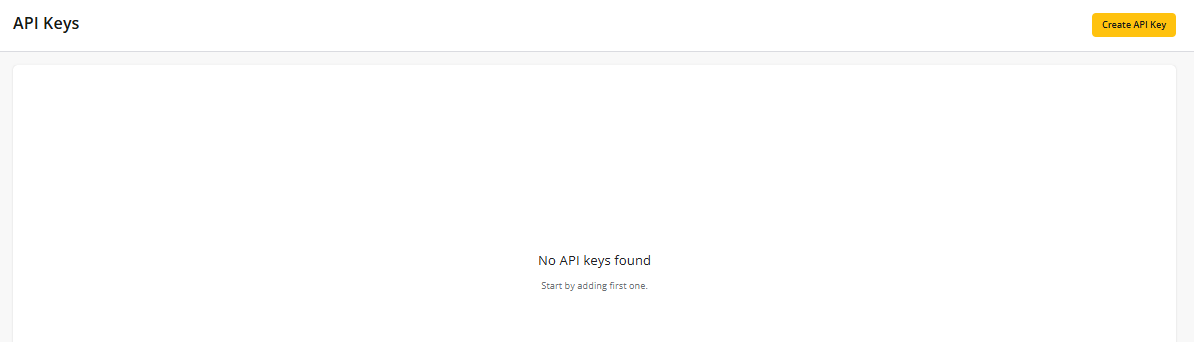
To generate an API key for your Trueloyal store, navigate to General >> API Keys and click on “Create API Key”.
Next, add a name and description to the API key you are generating, and then click on “Create API Key”.
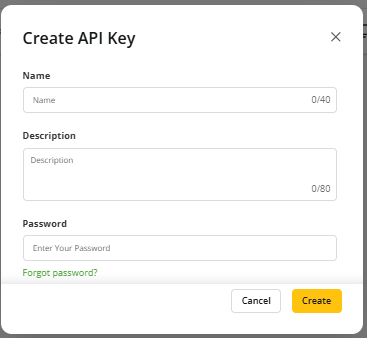
The new API key will be listed on the page.

To generate more API keys for different instances, click on the “Create API Key” button and follow the same steps.

📘
Note: We highly recommend having different API keys for different integrations.
API Keys Actions
Show/Hide Action: To unmask the API key, click on the eye icon. After successful authentication, the API key will be presented. You can click on the eye icon again to mask the API key.

Copy Action: To copy the API key, use this icon.

Edit Key Details: You can edit the details like the name and description of the API key using this action.

Deactivate Key: Use this action if you wish to deactivate the API key. When the API key is disabled, APIs using that key will show an authentication error. A disabled API key can be enabled again.

Activate Key: To enable the disabled API key, select this action.

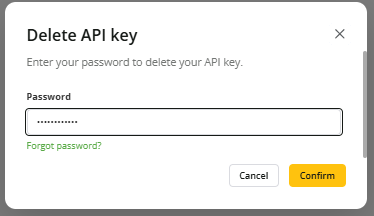
Delete Key: If you wish to delete the API key, select this action. This will hard delete the key. Once you select this action, a confirmation message will appear, and confirm it to proceed. This action will appear only when the API key is disabled.

📘
Key Notes:
- This API keys section will only be visible to admin with full access.
- All actions will be logged in the audit trail.
- Each program can have a maximum of 20 API keys.
Frequently Asked Questions
How will this impact my old integration with the default API keys?
This will not impact your old integration at all. However, if you wish to update the API key for your old integration, you will need to generate a new API key and replace the default one.
If you plan to use a new API key in the UI APIs or the Authentication JS, the JWT tokens will be created with the new API key. Along with this change, you also need to send the "API key identifier" so that Trueloyal can recognize that the tokens are generated with a new API key.
User Interface (UI) API
The User Interface APIs (UI APIs) are designed to be used on the front end and can be used to construct your own UI elements such as the loyalty dashboard.
To enable use of the API from the frontend, the authentication is based on JSON Web tokens (JWT tokens) paired with a partner ID.
Also, since the responses of the UI APIs are available in the front end, limited data is included in the response unlike the admin APIs.
Before commencing your use of the UI API, it is imperative to grant access to the origin. To achieve this, you must provide the origin URL within the CORS settings located in the Admin Console.
To navigate to these settings, please follow these steps:
- Access the Admin Console.
- Navigate to the "General" section.
- Select "Settings."
- Find "CORS Settings."
- Add the origin URL.
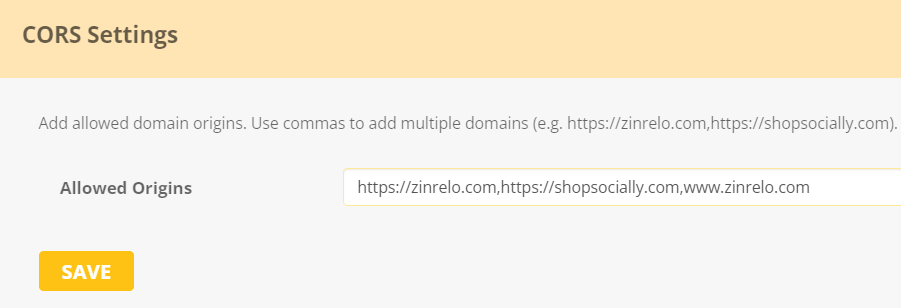
You have the option to specify multiple domains by separating them with commas without any space.
Once the necessary domains have been configured, please remember to save your changes.
To authenticate with the UI API, you must generate a JSON Web Token (JWT) and include the partner_id.
To generate the JWT token, you will need an API Key and API key identifier.
Where can I find API key and API key Identifier?
To obtain an API key and API key Identifier, navigate to General >> API keys.
From the list of API keys and identifiers, select the one created for calling Trueloyal endpoints.
To learn how to generate the API key, refer to this help document.
How to generate a JWT token?
You can generate a JWT token using the code snippets provided below in Python, Java, or Ruby:
import jwt

secret = 'your-api-key'
user_info = {
    'sub': 'api-key-identifier',
    # REQUIRED: Pass API key identifier.
    'member_id': 'unique-id',
    # REQUIRED: Pass members unique identifier in this field when the user is Logged in.
    'exp': 1635862400,
    # REQUIRED: Epoch timestamp (seconds), after which the token will expire
}

encoded_jwt = jwt.encode(user_info, secret, algorithm='HS256')
print(encoded_jwt)
📘
Note: If you are using the default API key for the JWT token, there is no need to pass the 'sub' parameter.
Where can I find the partner_id?
- Login to the admin console.
- Navigate to General >> Settings, to find your Partner ID.

Pass JWT and Partner ID in the API
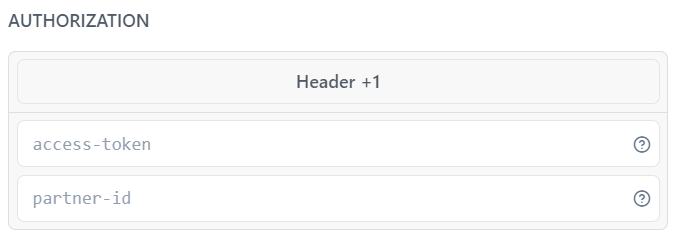
Once you have obtained the JWT and partner ID, you need to include this data when making API requests.
For the response, we can have the following structure in case of an error:
Status Codes
This will be a high-level status code from the following:
| Code | Title | Description |
|---|---|---|
| 200 | Ok | The request was successful. |
| 400 | Bad Request | Bad request. |
| 401 | Unauthorized | Your API key is invalid. |
| 404 | Not Found | The resource does not exist. |
| 500 | Internal Server Error | An error occurred with our API. |
| 503 | Service Unavailable | Service Unavailable. |
Error Codes
This will be the error codes of the following type:
| Status Code | Error Code | Message |
|---|---|---|
| 200 | UNABLE_TO_UPLOAD_PHOTO | Unable to upload the photo. Please try again later. |
| 400 | ATTRIBUTE_NOT_UNIQUE | IdParams name passed is not a unique attribute. |
| 200 | MEMBER_ID_ALREADY_IN_USE | Member ID already in use. |
| 200 | INVALID_MEMBER_STATUS | Invalid member status. |
| 200 | MEMBER_BLOCKED | Member has been blocked. |
| 200 | MAX_AWARDS_EXCEEDED | Maximum award limit exceeded. |
| 200 | INVALID_AMOUNT_TO_DEDUCT | Not enough points to deduct. |
| 400 | INVALID_JSON | Invalid JSON format. |
| 400 | INVALID_REQUEST | Invalid request: unsupported Content-Type [content-type]. |
| 200 | INCORRECT_MEMBER_ID_PASSED | Incorrect Member ID passed. |
| 200 | STORE_INACTIVE | Store is not active. |
| 200 | MEMBER_DELETED | Member record has been deleted. |
| 200 | EXCLUDED_TRANSACTION | Points could not be awarded because exclusion rule was applied. |
| 404 | TRANSACTION_DOES_NOT_EXIST | Transaction does not exist. |
| 500 | INTERNAL_SERVER_ERROR | Internal server error. |
| 400 | INVALID_REQUEST_PARAMETER_VALUES | Invalid request parameter value. |
| 200 | INVALID_PHOTO | Invalid file type or file size. Please make sure uploaded file type is JPG, JPEG, or PNG. and file size should be less than 10MB. |
| 200 | PAUSED_ACTIVITY | Activity is in paused state. |
| 400 | ID_PARAM_NAME_NOT_FOUND | IdParams name passed does not exist. |
| 401 | ERROR_UNAUTHORIZED | Some error occurred while authenticating your account at Trueloyal . Please verify your API credentials. |
| 200 | DUPLICATE_ORDER_ID | Loyalty Points already awarded for the Order ID. |
| 200 | MEMBER_CREATION_UNSUCCESSFUL | Member creation unsuccessful. |
| 400 | MERCHANT_DOES_NOT_EXIST | Merchant does not exist. |
| 200 | TRANSACTION_ATTRIBUTE_NOT_UNIQUE | Unique transaction attribute for given activity is not unique. |
| 200 | INVALID_MEMBER | Member does not exist. |
| 400 | INVALID_CURSOR | Invalid start cursor provided |
| 503 | SERVICE_UNAVAILABLE | API Service is unavailable. Please contact Trueloyal support. |
| 200 | INACTIVE_REWARD | This reward is inactive and cannot be redeemed. |
| 200 | AUTO_REDEEMABLE_REWARD | Cannot redeem auto redeemable reward via API. |
| 200 | INVALID_REWARD_FOR_USER | Returned product quantity exceeds order quantity. |
| 200 | MAX_REWARDS_EXCEEDED | Maximum redemption threshold for reward reached. |
| 200 | INSUFFICIENT_REDEEMABLE_POINTS | User points balance insufficient. |
| 200 | INVALID_REWARD_FOR_TIER | This reward is not valid for user tier. |
| 200 | ORDER_NOT_EXIST | Order with this id does not exist. |
| 200 | PRODUCT_QUANTITY_EXCEEDED | Returned product quantity exceeds order quantity. |
| 200 | INVALID_PRODUCT_ID | Incorrect product id passed. |
| 200 | RETURN_VALUE_EXCEEDS_AVAILABLE_BALANCE | Returned order value exceeds user's points balance. |
| 200 | PRODUCT_ID_AND_RETURN_AMOUNT_PASSED | Please pass either returned product id or returned amount. |
Introduction
TrueloyalAPIs handle sensitive data, requiring authentication through your account API keys for any calls made to the TrueloyalAPI.
This document provides guidance on generating API keys, their usage, and best practices.
Now, let's delve into this in more detail.
Generating API Keys
To generate an API key for your Trueloyal store, navigate to General >> API Keys and click on “Create API Key”.
Next, add a name and description to the API key you are generating, and then click on “Create API Key”.
The new API key will be listed on the page.
To generate more API keys for different instances, click on the “Create API Key” button and follow the same steps.
📘
Note: We highly recommend having different API keys for different integrations.
API Keys Actions
Show/Hide Action: To unmask the API key, click on the eye icon. After successful authentication, the API key will be presented. You can click on the eye icon again to mask the API key.
Copy Action: To copy the API key, use this icon.
Edit Key Details: You can edit the details like the name and description of the API key using this action.
Deactivate Key: Use this action if you wish to deactivate the API key. When the API key is disabled, APIs using that key will show an authentication error. A disabled API key can be enabled again.
Activate Key: To enable the disabled API key, select this action.
Delete Key: If you wish to delete the API key, select this action. This will hard delete the key. Once you select this action, a confirmation message will appear, and confirm it to proceed. This action will appear only when the API key is disabled.
📘
Key Notes:
- This API keys section will only be visible to admin with full access.
- All actions will be logged in the audit trail.
- Each program can have a maximum of 20 API keys.
Frequently Asked Questions
How will this impact my old integration with the default API keys?
This will not impact your old integration at all. However, if you wish to update the API key for your old integration, you will need to generate a new API key and replace the default one.
If you plan to use a new API key in the UI APIs or the Authentication JS, the JWT tokens will be created with the new API key. Along with this change, you also need to send the "API key identifier" so that Trueloyal can recognize that the tokens are generated with a new API key.
Guest APIS
The Guest APIs are designed for use on the frontend and can be utilized to construct your own UI elements, such as the loyalty dashboard.
To enable the use of the API from the frontend, authentication is based on partner ID. Unlike the UI APIs, Guest APIs will only fetch basic program details.
Before commencing the use of the Guest API, it is imperative to grant access to the origin. To achieve this, you must provide the origin URL within the CORS settings located in the Admin Console.
To navigate to these settings, please follow these steps:
- Access the Admin Console.
- Navigate to the "General" section.
- Select "Settings."
- Find "CORS Settings."
- Add the origin URL.
You have the option to specify multiple domains by separating them with commas without any space.
Once the necessary domains have been configured, please remember to save your changes.
To authenticate with the Guest API, you just need to pass the partner_id.
You can locate the partner_id by navigating to "General >> Settings >> Store Settings."
Pass Partner ID in the API
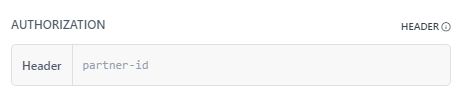
Once you have obtained the partner ID, you need to include this data when making API requests.
For the response, we can have the following structure in case of an error:
Status Codes
This will be a high-level status code from the following:
| Code | Title | Description |
|---|---|---|
| 200 | Ok | The request was successful. |
| 400 | Bad Request | Bad request. |
| 401 | Unauthorized | Your API key is invalid. |
| 404 | Not Found | The resource does not exist. |
| 500 | Internal Server Error | An error occurred with our API. |
| 503 | Service Unavailable | Service Unavailable. |
Error Codes
This will be the error codes of the following type:
| Status Code | Error Code | Message |
|---|---|---|
| 200 | UNABLE_TO_UPLOAD_PHOTO | Unable to upload the photo. Please try again later. |
| 400 | ATTRIBUTE_NOT_UNIQUE | IdParams name passed is not a unique attribute. |
| 200 | MEMBER_ID_ALREADY_IN_USE | Member ID already in use. |
| 200 | INVALID_MEMBER_STATUS | Invalid member status. |
| 200 | MEMBER_BLOCKED | Member has been blocked. |
| 200 | MAX_AWARDS_EXCEEDED | Maximum award limit exceeded. |
| 200 | INVALID_AMOUNT_TO_DEDUCT | Not enough points to deduct. |
| 400 | INVALID_JSON | Invalid JSON format. |
| 400 | INVALID_REQUEST | Invalid request: unsupported Content-Type [content-type]. |
| 200 | INCORRECT_MEMBER_ID_PASSED | Incorrect Member ID passed. |
| 200 | STORE_INACTIVE | Store is not active. |
| 200 | MEMBER_DELETED | Member record has been deleted. |
| 200 | EXCLUDED_TRANSACTION | Points could not be awarded because exclusion rule was applied. |
| 404 | TRANSACTION_DOES_NOT_EXIST | Transaction does not exist. |
| 500 | INTERNAL_SERVER_ERROR | Internal server error. |
| 400 | INVALID_REQUEST_PARAMETER_VALUES | Invalid request parameter value. |
| 200 | INVALID_PHOTO | Invalid file type or file size. Please make sure uploaded file type is JPG, JPEG, or PNG. and file size should be less than 10MB. |
| 200 | PAUSED_ACTIVITY | Activity is in paused state. |
| 400 | ID_PARAM_NAME_NOT_FOUND | IdParams name passed does not exist. |
| 401 | ERROR_UNAUTHORIZED | Some error occurred while authenticating your account at Zinrelo. Please verify your API credentials. |
| 200 | DUPLICATE_ORDER_ID | Loyalty Points already awarded for the Order ID. |
| 200 | MEMBER_CREATION_UNSUCCESSFUL | Member creation unsuccessful. |
| 400 | MERCHANT_DOES_NOT_EXIST | Merchant does not exist. |
| 200 | TRANSACTION_ATTRIBUTE_NOT_UNIQUE | Unique transaction attribute for given activity is not unique. |
| 200 | INVALID_MEMBER | Member does not exist. |
| 400 | INVALID_CURSOR | Invalid start cursor provided |
| 503 | SERVICE_UNAVAILABLE | API Service is unavailable. Please contact Zinrelo support. |
| 200 | INACTIVE_REWARD | This reward is inactive and cannot be redeemed. |
| 200 | AUTO_REDEEMABLE_REWARD | Cannot redeem auto redeemable reward via API. |
| 200 | INVALID_REWARD_FOR_USER | Returned product quantity exceeds order quantity. |
| 200 | MAX_REWARDS_EXCEEDED | Maximum redemption threshold for reward reached. |
| 200 | INSUFFICIENT_REDEEMABLE_POINTS | User points balance insufficient. |
| 200 | INVALID_REWARD_FOR_TIER | This reward is not valid for user tier. |
| 200 | ORDER_NOT_EXIST | Order with this id does not exist. |
| 200 | PRODUCT_QUANTITY_EXCEEDED | Returned product quantity exceeds order quantity. |
| 200 | INVALID_PRODUCT_ID | Incorrect product id passed. |
| 200 | RETURN_VALUE_EXCEEDS_AVAILABLE_BALANCE | Returned order value exceeds user's points balance. |
| 200 | PRODUCT_ID_AND_RETURN_AMOUNT_PASSED | Please pass either returned product id or returned amount. |
Comments
Please sign in to leave a comment.