
In this article, we will cover:
- What type of Product Feeds can you add to your account
- How to add a Product Feed Account
- How to add a Product Tag from the Product Feed
- How to remove a Product Tag from the Product Feed
What type of Product Feeds can you add to your account
Click on the link to find out more about each type of feed:
Adobe Commerce (formerly Magento)
*The FTP, SFTP, HTTP, and AWS S3 product feeds now support the Bazaarvoice XML format. Provide an XML file for upload instead of a CSV file for this to work
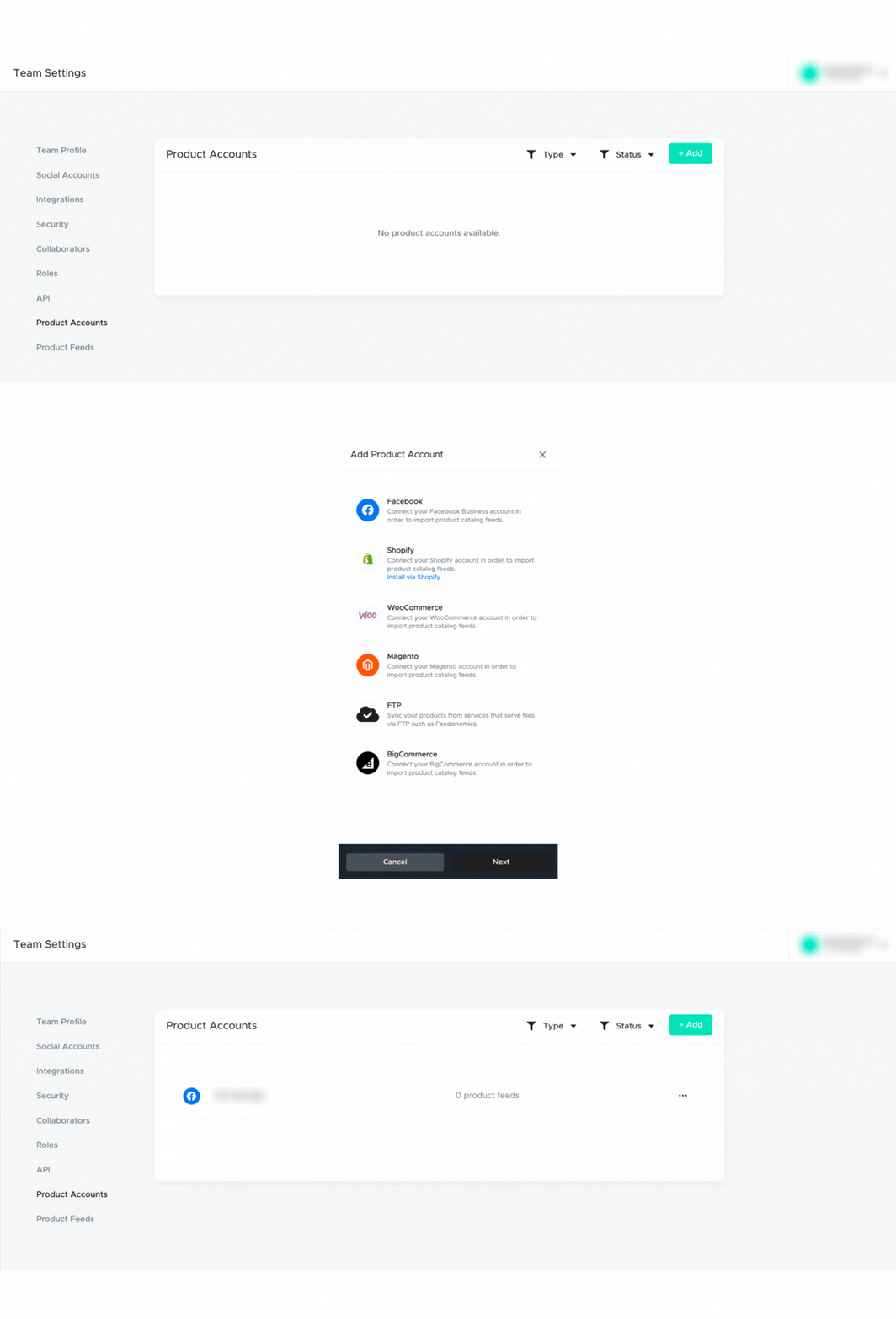
How to add a Product Account
- Click on your name in the right-hand corner
- Click on Team Settings
- Click on Product Account
- Click on +Add button
- Select the Product Account you would like to add
- Follow the instructions for each type
- Your Product account will appear in the Product Account list
 How to add a Product Tag from the Product Feed
To add a product tag, you will need items in your product feeds. Click here on how to set these up.
- Go into your Board
- Find the post you want to put a product tag on
- Click on
- Click on the blue Add Product Tag button
- Draw the box where you want the product tag to live
- Once you have done that, the product feed list will appear on the right-hand side
- Click your product
- Click on Assign Product
- For multiple, repeat steps 4-8
- To Finish, click the X on the window
How to remove a Product Tag from the Product Feed
To remove a product tag, proceed with the following steps:
- Go into your Board
- Find the post you want to put a product tag on
- Click on
- Click on remove next to the product you want to remove
- To Finish, click the X on the window
If you run into any issues with adding your Product Feed, please don't hesitate to contact Technical Support at support@trueloyal.com.
Comments
Please sign in to leave a comment.