
In this article, we will cover:
- Requirements and limitations
- Configuration in the TrueLoyal admin console
- Install the extension
- How to place an order in Lightspeed
- How to return an order in Lightspeed
- Troubleshooting
You can integrate your Lightspeed POS with your TrueLoyal loyalty program.
TrueLoyal has a native integration with Lightspeed, so the primary user experience flows of enrolling members, awarding points and redeeming points are all possible in the Lightspeed interface itself.
Requirements and limitations
Before you start, please make sure your setup meets the following requirements, and be aware of what the integration doesn't support.
- Workflows: The Workflows feature is mandatory for the Lightspeed X and TrueLoyal integration. If your Lightspeed account doesn't have the "Workflows" feature, the integration will not work.
- Enterprise account: Your Lightspeed X account should be an "Enterprise" account.
- Creating the attributes: You can create the attributes described below yourself in the TrueLoyal admin console. To find out how, take a look at Loyalty Custom Attributes.
- Supported attributes: The member and transaction attributes apart from "Enrollment Store ID" are not supported by TrueLoyal.
- Supported rewards: We support percentage discount, fixed amount discount and free product rewards in the Lightspeed integration. Flexible rewards are not supported.
- Reward changes: Each time there is a change in any of the rewards, the configuration must be synced manually (see Install the extension).
- Exchanges: Exchanges are not supported by TrueLoyal in Lightspeed.
- Partial returns: Order-level discounts are not split across individual products on a partial return (see Partial return).
- Sync time: It takes a minimum of 10 minutes for order details to sync from Lightspeed to TrueLoyal.
Configuration in the TrueLoyal admin console
The Lightspeed extension captures details of the cashier, register and store from which the enrollments, point awards or redemptions happen. In order to store these details in TrueLoyal, the program activities and rewards should be configured before the integration process.
Configure program activities
You award points to customers on the basis of the program activities. You can configure multiple program activities for your store and award points to your customers on the basis of the activity they perform. To know more about activities configuration, take a look at Activities. For each activity, you first need to create their corresponding attributes.
For example, if you want to configure a Purchase activity, you need to first create the following attributes:
- Cashier_id
- Store_id
- Register_id
Configure rewards
You need to configure the rewards that members will get to redeem their points on. To learn how to set these up, take a look at Configuring Program Rewards.
The reward attributes to be created are:
cashier_id_ <Reward ID>
register_id_ <Reward ID>
store_id_ <Reward ID>
So, if you create a new reward and it has the ID "reward_bc668", then the attributes you will create are:
- cashier_id_reward_bc668
- register_id_reward_bc668
- store_id_reward_bc668
Enrolling members
Once your activities and rewards are configured in your loyalty program, you can add new members and fetch existing members' details via Lightspeed POS. The member attribute is:
-
Member attributes:
- Enrollment Store ID
Install the extension
TrueLoyal's Lightspeed extension syncs the configuration from the TrueLoyal console to the Lightspeed account, so before integrating the platforms, the program must be configured in TrueLoyal.
To integrate your Lightspeed POS with your TrueLoyal loyalty program:
-
Go to https://zinrelo.shoppinpal.com.
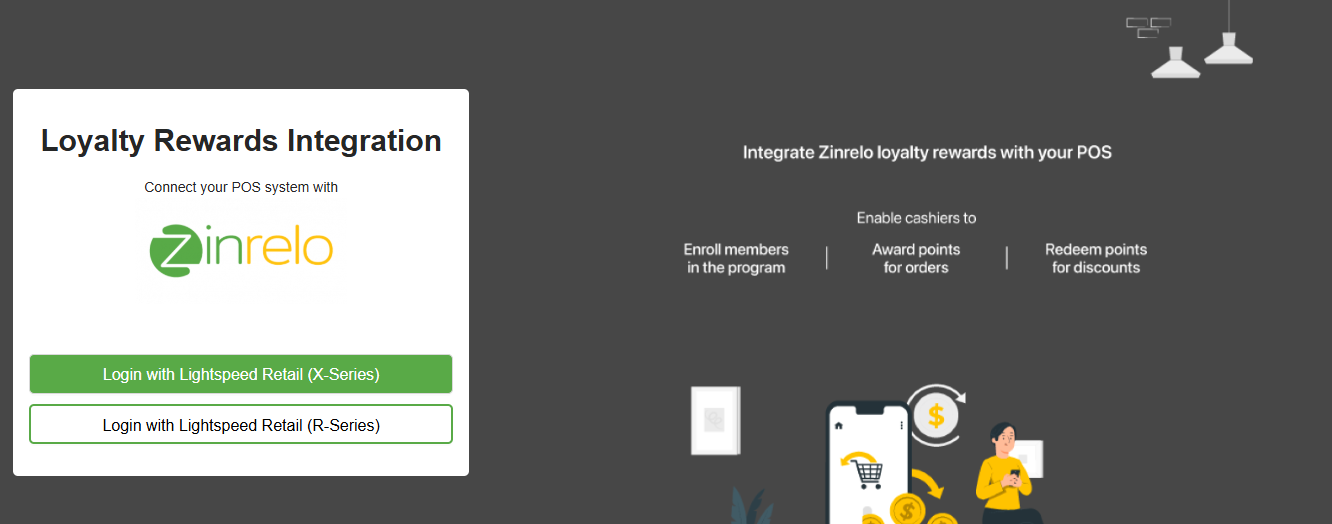
-
Enter your Vend store URL.
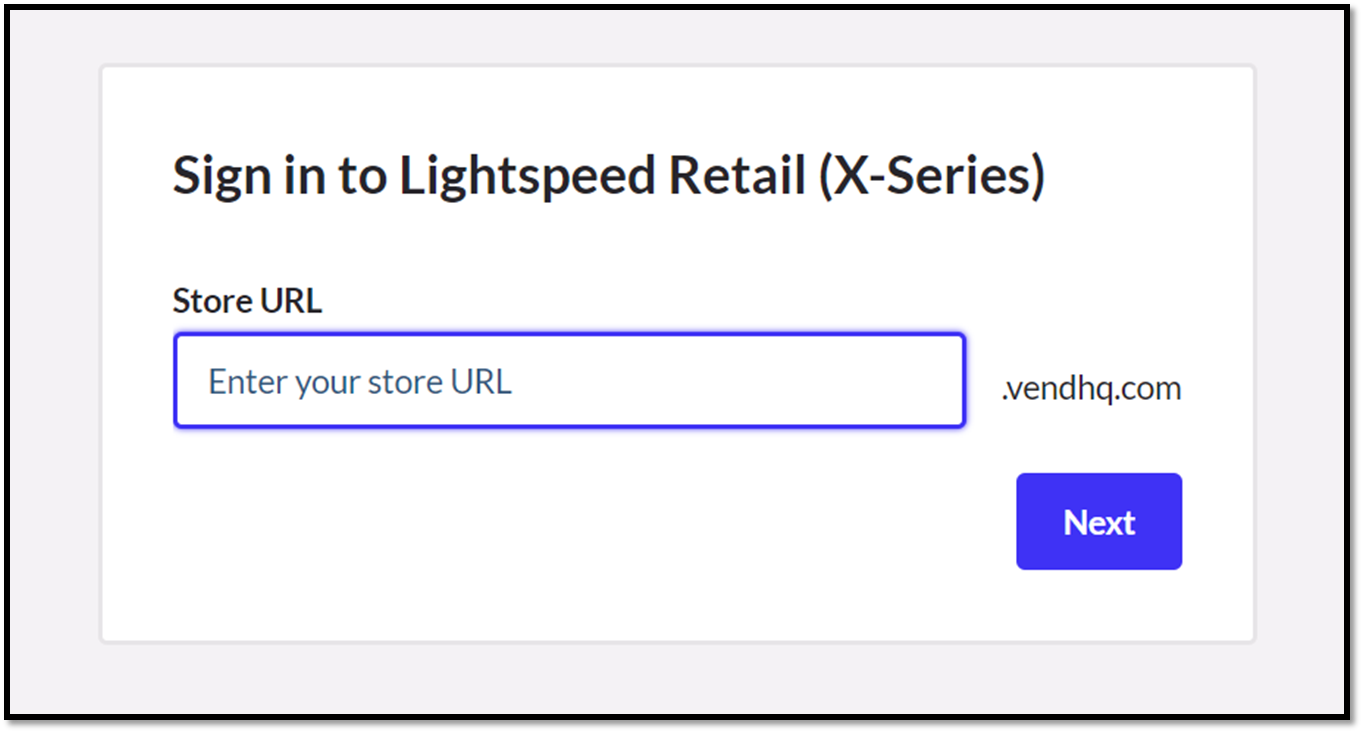
-
Log in using your Lightspeed account.
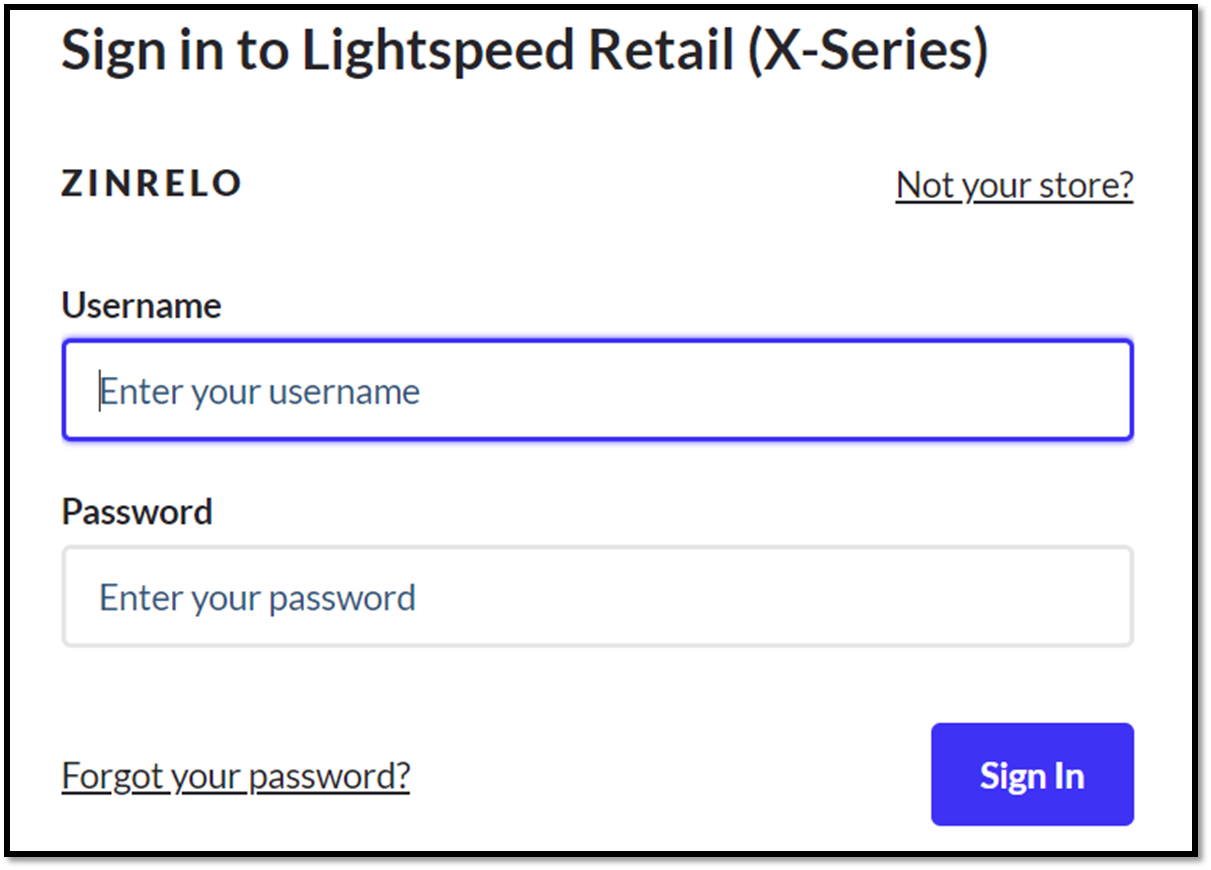
-
Click Connect.
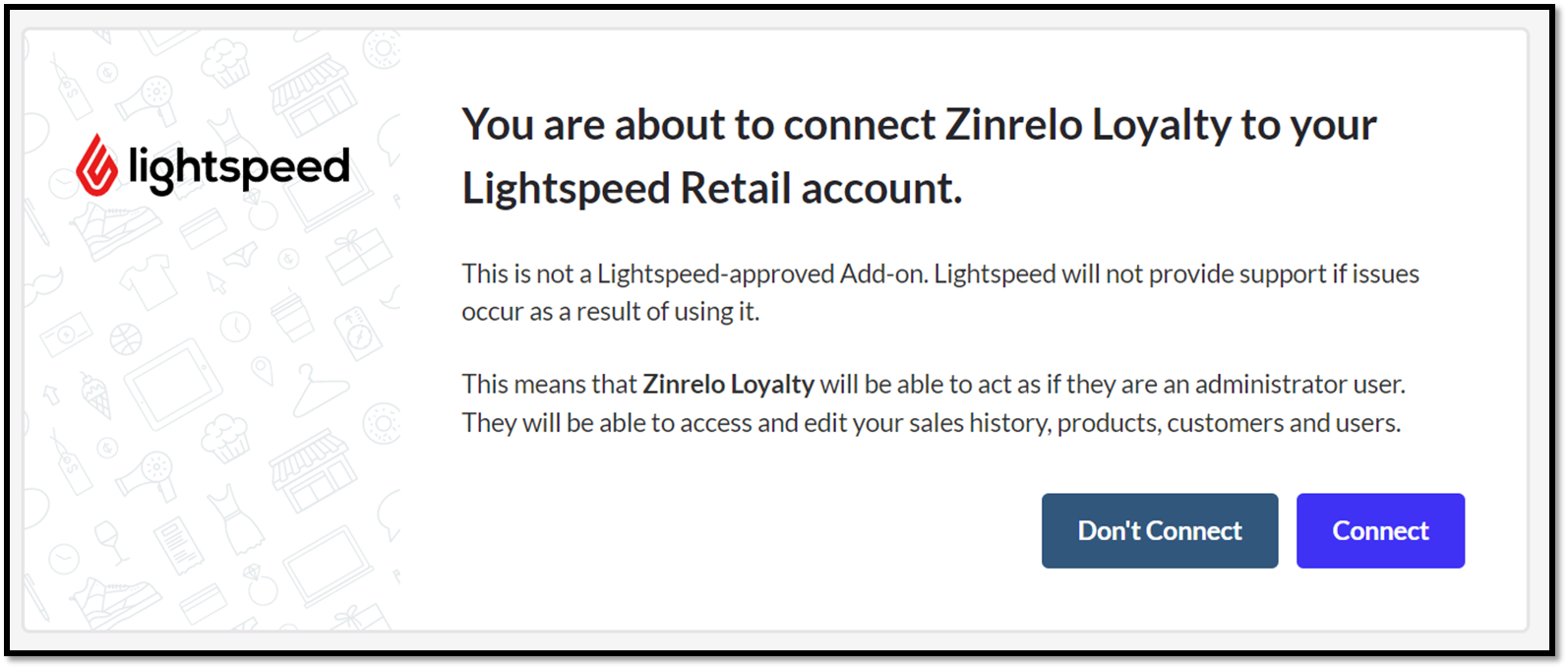
-
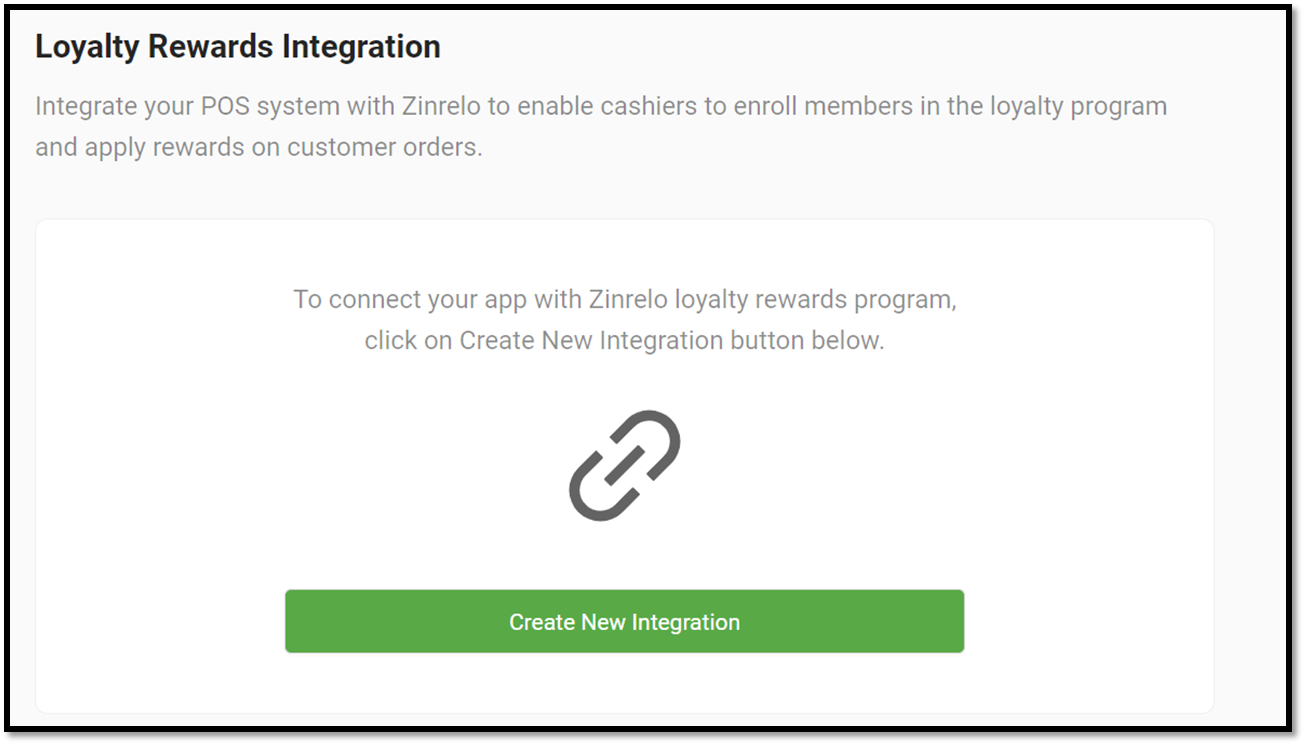
Start the integration process by clicking Create New Integration.
-
Enter your Partner ID and API Key, and select the currency from the dropdown.
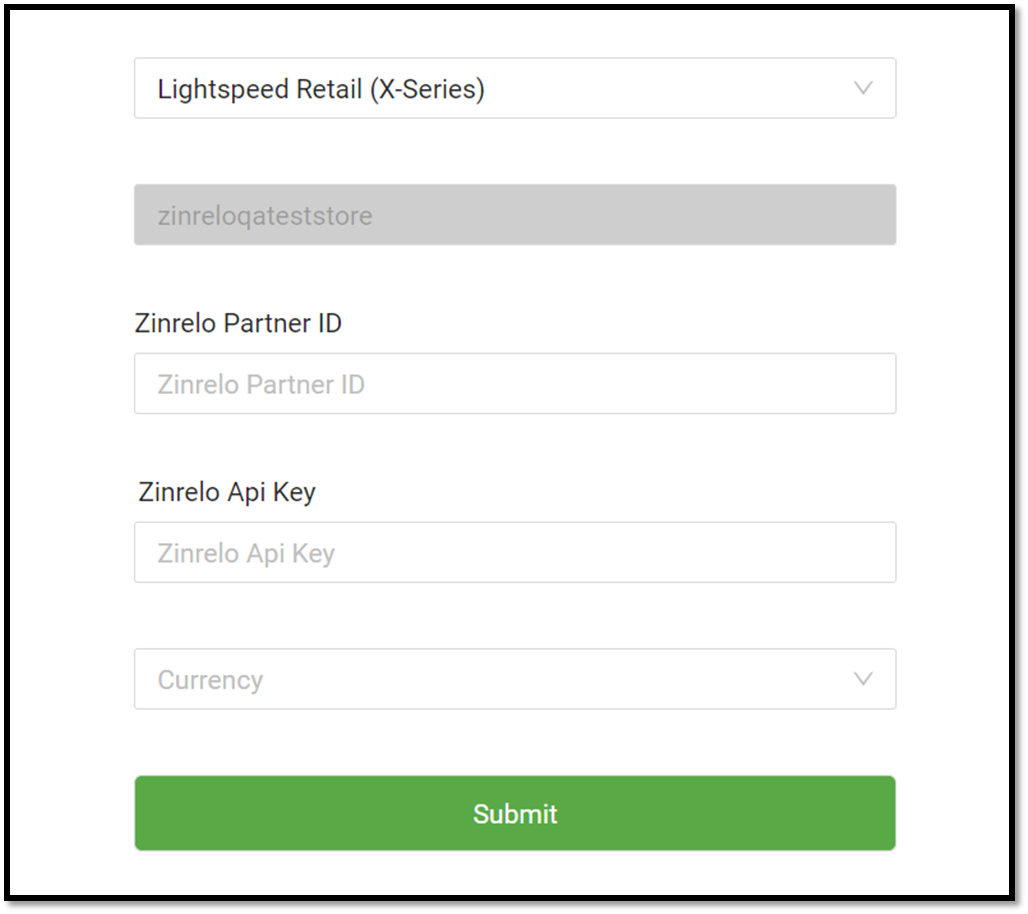
To obtain your Partner ID, go to General >> Settings. For the API key, navigate to General >> API Keys and select the API key you created for this purpose.
For instructions on generating API keys, please refer to API keys (developer documentation).
Please note: The API Keys section under General is only visible to admins with full access.
-
The sync will start.
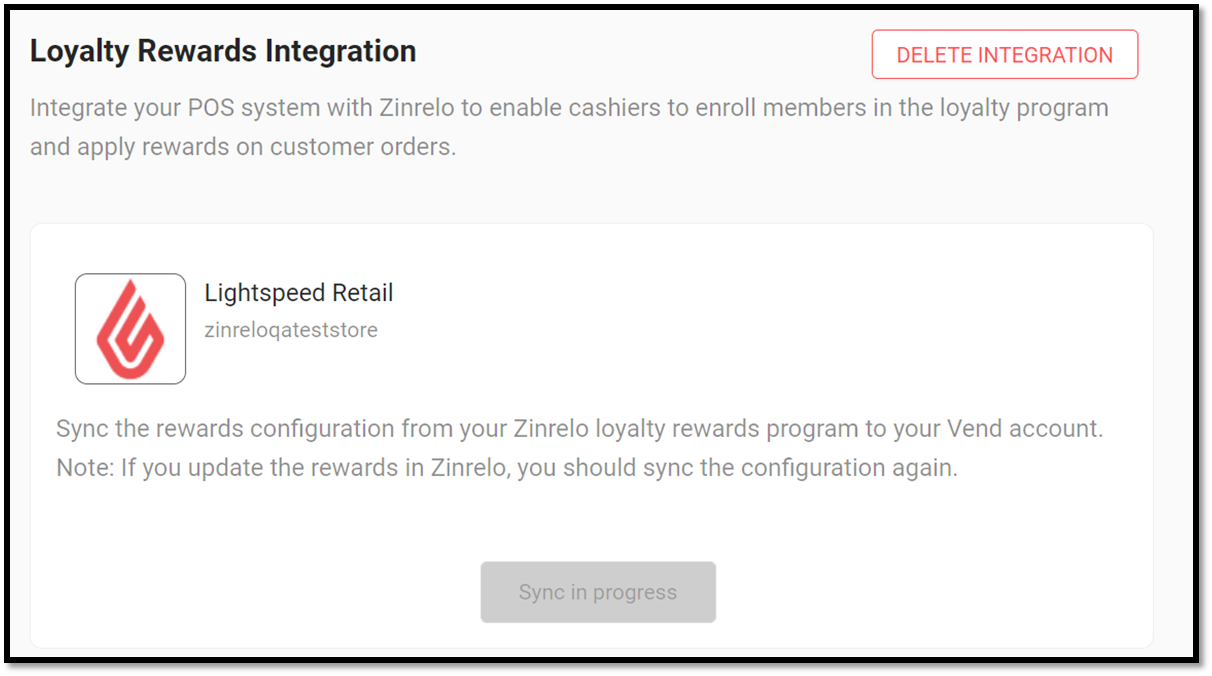
Note: Each time there is a change in any of the rewards, the configuration must be synced manually.
How to place an order in Lightspeed
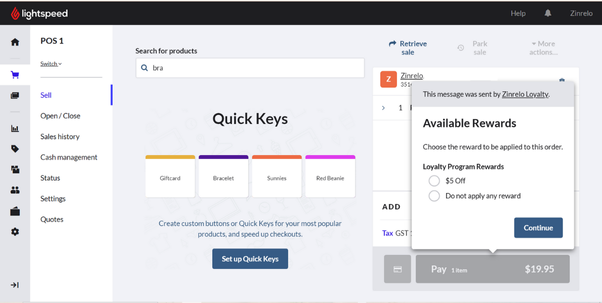
Important for cashiers: If the Available Rewards popup won't continue to payment, please do not remove and re-add the customer on the sale to get past it. The sale will complete with the discount, but the reward is not recorded, so the points are not deducted from the member's balance in TrueLoyal. Stop and contact support@trueloyal.com instead (see The Available Rewards popup doesn't continue to payment).
To place an order in Lightspeed, follow these steps:
-
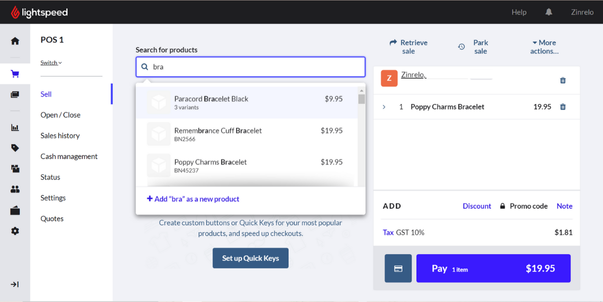
Choose a product from the "Search for Products" section.
-
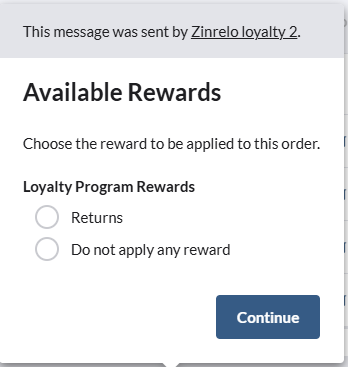
After selecting your products, click the Pay button. This will bring up the "Available Rewards" popup. Select your desired reward and click Continue.
-
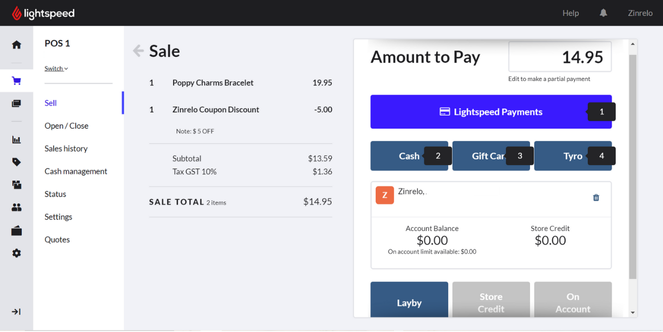
Choose your payment method and complete the purchase.
How to return an order in Lightspeed
To process a return in Lightspeed, follow these steps:
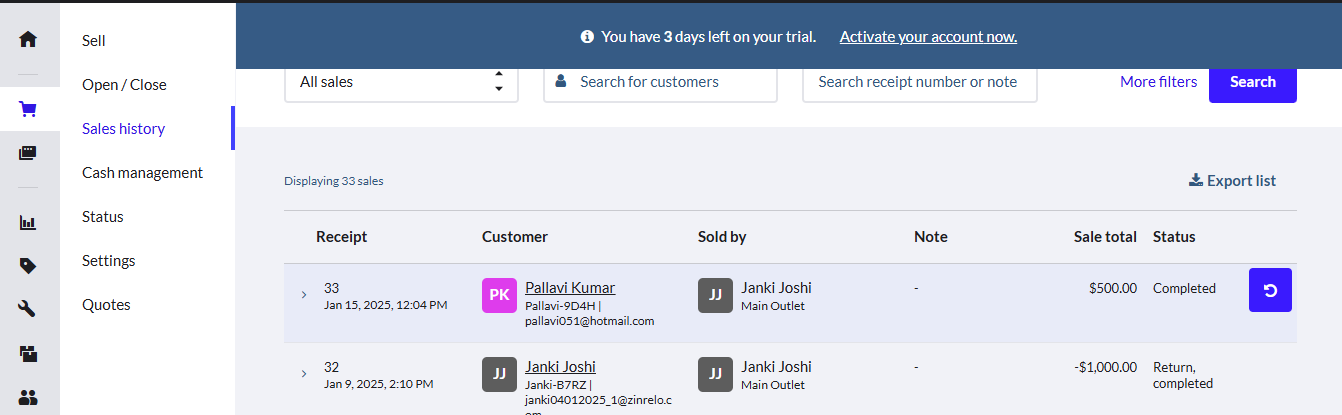
- Go to Sales History.
- Locate the desired order.
-
Click the Refresh button (the circular arrow icon) for the order the customer wants to return.
Full return
-
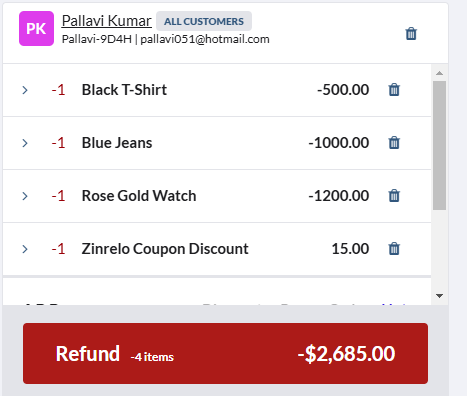
Click Refund to initiate the return of the entire order.
-
In the Available Rewards popup, select Returns to proceed.
Partial return
For partial returns, discounts at the order level are not distributed across individual products. Splitting discounts between products is not supported. You have two options when processing a partial return:
- Deduct the complete order-level discount, or
- Do not deduct the discount at all.
Points for partial returns will be adjusted correctly in TrueLoyal.
Troubleshooting
The Available Rewards popup doesn't continue to payment
You might find that the Available Rewards popup gets stuck. For example, you select a reward (or "Do not apply any reward") and click Continue or OK, but nothing happens, or clicking Pay just reopens the popup.
If this happens, please don't remove and re-add the customer on the sale to get past it. The sale will go through with the discount, but the reward isn't recorded, so the points are not deducted from the member's balance in TrueLoyal.
Instead, you can work through the following:
- Check whether it happens on every register and store, or only on some of them.
- Optionally, re-sync the configuration at https://zinrelo.shoppinpal.com as a first check (see Install the extension). This helps rule out an out-of-date configuration, but it isn't a guaranteed fix.
- Capture a HAR file and the browser console log while the problem is happening. You can find out how to do this in How to Capture Network Logs (HAR) and Console Errors.
- Send the HAR file and console log to support@trueloyal.com, along with the register and store it happened on and the time it happened.
Points are missing after a sale
If a member's points don't show up after a sale, it doesn't necessarily mean something has gone wrong. Order details take a minimum of 10 minutes to sync from Lightspeed to TrueLoyal, so:
- Wait at least 10 minutes after the sale.
- Check the member's Transaction History in TrueLoyal, including any pending entries.
Please be aware that points earned and points redeemed are recorded separately, so you might see one appear without the other.
If the points are still missing, please include the Lightspeed receipt or sale number, the member's email address and the store the sale was made in when you get in touch.
If you have any questions or concerns regarding Lightspeed (Vend) POS integration, please don't hesitate to contact Technical Support at support@trueloyal.com.
Comments
Please sign in to leave a comment.