
In this article, we will cover:
- How can I set up a reward?
- Configuring the rewards
- Ineligible rewards
- How to customize deduction points for rewards per member
- Frequently asked questions
How can I set up a reward?
The rewards configuration section is in the Program Settings tab.
Program Settings >> Rewards
You can create a new reward, edit existing rewards, and activate, delete, or pause any of the options that have been configured.
You can reorder the sequence of rewards in the End User Dashboard by clicking the Reorder Rewards for Members button. Just drag and drop to change the order in which rewards appear on the loyalty member's dashboard, then make sure to save your changes.
You can also download coupon data from here.
Please note: You can click the delete button to remove a reward. Historical redemptions of this reward will not be impacted. However, if the reward is part of an ongoing campaign or a campaign in draft, deletion will not be permitted.
Configuring the rewards
This section deals with setting up coupon-based rewards. Coupon-based rewards include any reward that involves giving the customer a coupon code in exchange for loyalty points. The coupon code may be for a dollar discount, a percentage discount, free shipping, a free gift with purchase, or even a code for a 3rd-party gift certificate.
Settings
The system will ask you for the basic configuration details and specifics of the reward you want to set up for your loyalty program. The configuration fields are explained below.
Fixed Amount Discount
A fixed amount discount is a type of discount where a specific amount is deducted from the original price of a product. For example, it can be $10 off, $100 off, or any other predetermined amount. This type of discount provides customers with a fixed monetary reduction in the purchase price.
To set up a Fixed Amount Discount reward, please follow the steps below:
- Reward ID - Each reward is assigned a unique Redemption ID, which can be used for identification purposes in the CSS and APIs. This field cannot be edited.
- Reward Type: Select "Fixed Amount Discount" as the reward type.
- Reward Tile Image: Upload a tile image of 280 x 280 size to enhance the look and feel of the reward.
- Fixed Amount Discount: Specify the exact amount of discount you want to offer to your members. For example, you can enter $10 or any other desired value.
- Points to be deducted: Determine the number of points to be deducted from a member's account when they opt for this reward.
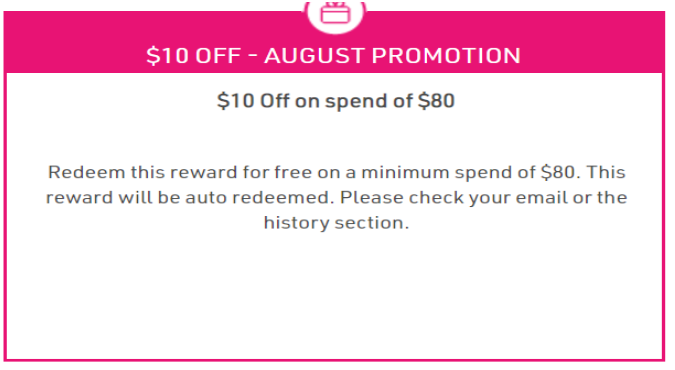
- Auto Redeem this Reward: When this box is checked, all rewards that meet the set criteria will be automatically redeemed. You will not see the confirm and cancel buttons in auto redemption.
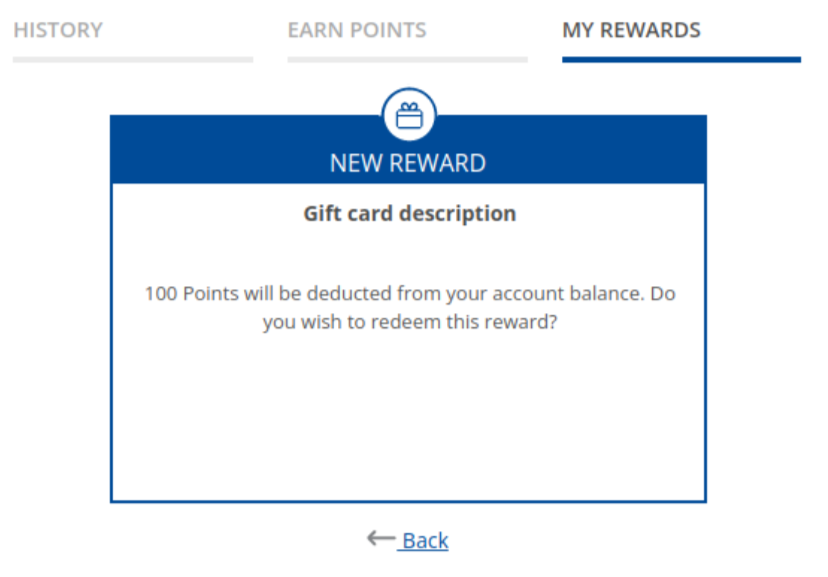
Note: If you enable the auto-redeem flag, the once-a-year frequency rule will be set. You can archive, modify, or pause the frequency rules. If the auto-redeem feature is disabled and then re-enabled, the new frequency rule will be set again.
- Hide from Guest Users: This will hide the reward from guest users.
- Autogenerate Coupon Codes: This option is exclusively available for Shopify users, where the codes are automatically generated.
- Coupon Code Prefix - Enter a prefix of your coupon
- Embed Form - Embed secure online forms in the member dashboard for this reward. See How to add a form to a reward.
Note: If auto redemption is set on multiple rewards, TrueLoyal follows a set priority order to decide which rewards should be triggered first. All points-based rewards will be given priority and will be processed in decreasing order of points required. Then the tier-based rewards will be taken up in decreasing order of points required.
You may see a few different options based on which e-commerce cart you are on.
How to add a form to a reward
You can embed a Form Builder form in any reward, so members fill out the form as part of redeeming it. For example, you could collect a delivery address or a size for a product redemption, or ask a couple of questions before a custom reward is issued.
Note: You will need to publish your form in Form Builder first for it to appear in the list. See Form Builder for how to build a form.
- Go to Loyalty, Program Settings and then Rewards
- Click Edit on the reward you would like to add the form to, or click on Create Reward to make a new one
- In the Settings tab, scroll down to Embed Form and select your form from the dropdown. If you can't see it, click on Refresh Form List, or click on Create New Form to go straight to Form Builder
- Once a form is selected, you can click Edit to open it in Form Builder or Remove to take it off the reward
- Click Save
Percentage Discount
A percentage discount is a type of discount where a specific percentage is deducted from the original price of a product. For example, it can be 10% off, 20% off, or any other predetermined percentage. This type of discount provides customers with a percentage reduction in the purchase price.
- Reward ID: Each reward is assigned a unique Redemption ID, which can be used for identification purposes in the CSS and APIs. This field cannot be edited.
- Reward Type: Select "Percentage Discount" as the reward type.
- Reward Tile Image: Upload a tile image of 280 x 280 size to enhance the look and feel of the reward.
- Percentage Discount: Specify the percentage of discount you want to offer to your members. For example, you can enter 10% or any other desired percentage.
- Points to be deducted: Determine the number of points to be deducted from a member's account when they opt for this reward.
- Auto Redeem this Reward: When this box is checked, all rewards that meet the set criteria will be automatically redeemed.
- Hide from Guest Users: This will hide the reward from guest users.
- Autogenerate Coupon Codes: This option is exclusively available for Shopify users, where the codes are automatically generated.
- Coupon Code Prefix - Enter a prefix of your coupon
- Embed Form - Embed secure online forms in the member dashboard for this reward.
Free Shipping
Free shipping refers to the practice of offering delivery of goods or products to members without any additional charge. It allows customers to receive their purchases without incurring shipping fees.
- Reward ID: Each reward is assigned a unique Redemption ID, which can be used for identification purposes in the CSS and APIs. This field cannot be edited.
- Reward Type: Select "Free Shipping" as the reward type.
- Reward Tile Image: Upload a tile image of 280 x 280 size to enhance the look and feel of the reward.
- Points to be deducted: Determine the number of points to be deducted from a member's account when they opt for this reward.
- Auto Redeem this Reward: When this box is checked, all rewards that meet the set criteria will be automatically redeemed.
- Hide from Guest Users: This will hide the reward from guest users.
- Autogenerate Coupon Codes: This option is exclusively available for Shopify users, where the codes are automatically generated.
- Coupon Code Prefix - Enter a prefix of your coupon
- Embed Form - Embed secure online forms in the member dashboard for this reward.
Product Redemption
Product redemption typically refers to the process by which members can claim or obtain a specified product free of cost.
- Reward ID: Each reward is assigned a unique Redemption ID, which can be used for identification purposes in the CSS and APIs. This field cannot be edited.
- Reward Type: Select "Product Redemption" as the reward type.
- Reward Tile Image: Upload a tile image of 280 x 280 size to enhance the look and feel of the reward.
- Product URL: Enter the URL of the product that members will obtain free of cost.
- Product ID: Enter the ID associated with the free product.
- Points to be deducted: Determine the number of points to be deducted from a member's account when they opt for this reward.
- Auto Redeem this Reward: When this box is checked, all rewards that meet the set criteria will be automatically redeemed.
- Hide from Guest Users: This will hide the reward from guest users.
- Embed Form - Embed secure online forms in the member dashboard for this reward.
Flexible Points Reward
Rewards in a loyalty program are typically threshold-based. These rewards are available to members when they have accrued a certain number of points. This approach has its benefits: the redemption thresholds can be aligned to minimise churn. Since members don't redeem all available points from their account, their loyalty account always holds some value and serves as an incentive to return.
That said, there are use cases for flexible point redemption, where a member can redeem any number of points from their account. Let's look at an example to understand the difference between fixed-point rewards and flexible-point rewards.
Consider a member who has 573 reward points in their account. Assume the program has a fixed point reward of $5 for 500 points. In this case, the member can redeem 500 points for a $5 reward and will be left with a balance of 73 points.
If the rewards are changed to flexible point rewards, the member can redeem all 573 points and get a reward worth $5.73.
- Reward ID: Each reward is assigned a unique Redemption ID, which can be used for identification purposes in the CSS and APIs. This field cannot be edited.
- Reward Type: Select "Flexible Points Reward" to allow members to redeem any number of points (within defined limits) based on a conversion rate.
- Reward Tile Image: Upload a tile image of size 280 x 280 pixels to enhance the visual appeal of the reward on the end-user interface.
-
Redemption Conversion Rate: Defines how points convert to currency.
Example: 100 Points = $1. If a member redeems 500 points, they receive $5. -
Minimum Redemption Limit: The minimum number of points that must be redeemed in a single transaction.
Example: 1 Point means the member must redeem at least 1 point to use the reward. -
Maximum Redemption Limit: The maximum number of points that can be redeemed in one transaction.
Example: 1000 Points means members can redeem up to 1000 points at once.- No Limit (checkbox): If enabled, members can redeem all available points in their account without restriction.
- Hide from Guest Users: When enabled, this option hides the reward from users who are not signed in.
- Autogenerate Coupon Codes: Automatically generates a unique coupon code for each redemption, eliminating the need for manually uploading codes.
- Coupon Code Prefix - Enter a prefix of your coupon
- Embed Form - Embed secure online forms in the member dashboard for this reward.
Note: This reward can be configured only for VTEX and NetSuite customers. To enable the Flexible Points reward, write to your account manager at support@trueloyal.com.
Text configuration
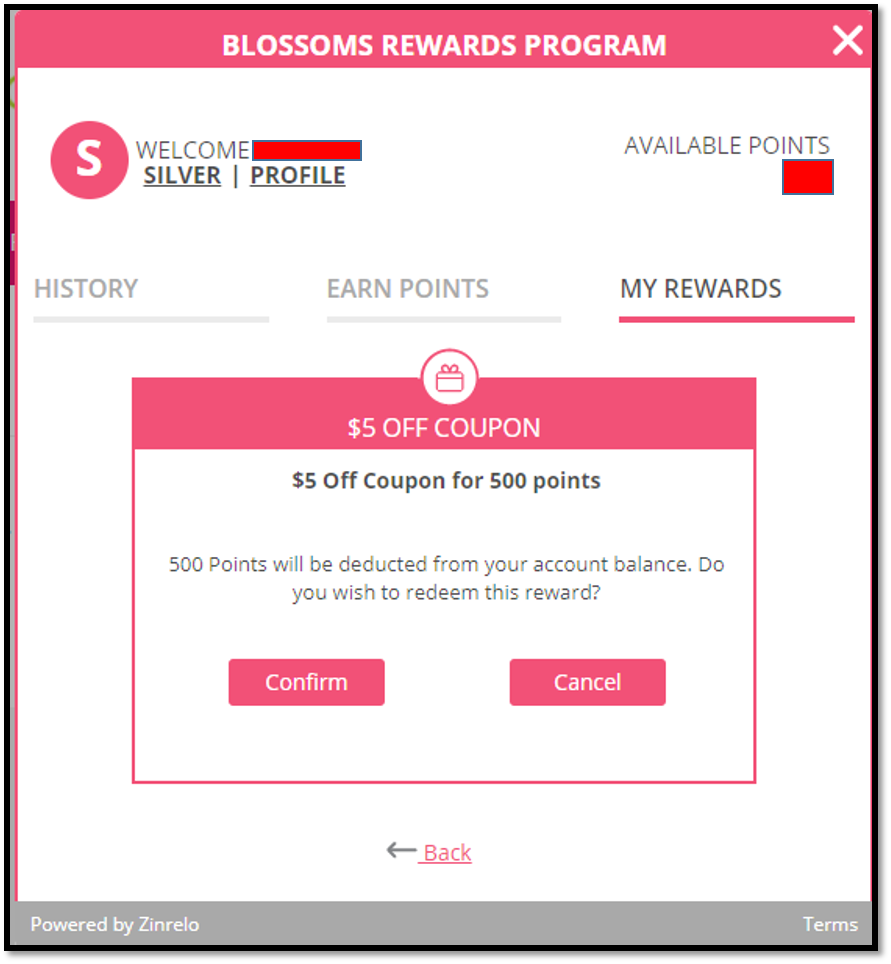
All customer-facing text elements in the redemption process are automatically populated but can be customised. You can configure the text of the rewards shown to members via Text Configuration.
Program Settings >> Rewards >> Text Configuration
The following snapshots explain where the respective text configuration elements are used in the redemption process.
To learn more about language customisation, refer to this article.
Manage codes
The Manage Codes section allows you to view all the codes uploaded for the redemption, the number of codes that are used up, the members to whom the codes were given, and to upload new coupon codes.
Please check the article Managing Coupon Codes for details.
Manage rules
To set rules for rewards, go to Program Settings >> Rewards >> Manage Rules.
The exclusion rules in rewards can be set to hide rewards from members based on their redemption frequency, transaction, and member attributes.
Note: All rewards will be visible to everyone unless exception rules are set.
This is how the rule engine works:
- If any activity matches all or any of the set conditions, then the set action will be taken. These conditions are set on Redemption Frequency, Transaction, and Member Attributes.
Please note: You can define custom attributes for individual rewards, as well as establish global attributes that apply to all rewards and activities, or alternatively across all rewards. To create custom attributes for your store, write to your account manager at support@trueloyal.com.
- Each category has its own operators, which are selected on the basis of the requirements.
For example:
- If the category is "Date" (such as Enrollment Date, Birthday, Last Points Earned Date, etc.), then its operators could be Relative (more than, less than, etc.) and Absolute (after, before, on, etc.).
- If the category is "Number" (such as Number of Reviews, Number of Purchases, etc.), then its operators will be less than, greater than, equals, and between.
- If the category is "String" (such as member tags, city, nationality, etc.), then its operators will be equals, not equals, in and not in, contain all of, contain any of, etc.
Note: The date added to the end date will be excluded from the business rules when using the "between" operator. Only the start date and a date before the end date will be considered.
Setting reward rules
Reward rules are set on Redemption Frequency, Custom Attributes, and Member Attributes.
- Redemption Frequency: This adds a frequency cap on the number of times a member can redeem the reward. After the threshold is reached, no reward will be shown to the member.
By default, no rewards have any frequency rules set. The administrator can set frequency rules to hide the reward from a specific member or group of members.
You can set multiple frequencies in the "match any" condition, while in the "match all" condition you are allowed to set the frequency only once.
Use case: If available points < 10, frequency > 10 in a day, and frequency > 100 in a month. In this case, you can use the "match any" condition and set multiple frequencies for a day and a month.
- Member Attributes: You can hide the reward from members based on their member attributes and custom attributes, such as user tier, enrollment date, member tags, nationality, gender, etc.
Use cases
Use Case 1: A one-time "Gold Tier Welcome" reward has been configured. Members are able to redeem this reward when they upgrade to the Gold tier. However, this reward is available for redemption only once, so after a member has redeemed this reward, the reward should be hidden from that member.
For this use case, two rules have to be set. First, hide the reward from Platinum and Silver tiers, as this reward is only for Gold tier members. Second, you have to set redemption frequency.
Use Case 2: You want to make rewards only available to a member that has bought from you, at least once.
Use Case 3: You want to reward the members that have earned at least 50000 points in their lifetime with the program
- Transaction Attributes
Use case: Cookies Delights, a cookie store, aims to provide exclusive discounts to customers who make purchases from their newly established store, "Sweet Delights." To achieve this, they can create a global attribute known as "Store Name," which will be available to all types of rewards configured in their loyalty program. They can set rules on the attribute "Store Name" and offer exclusive discounts to their customers. This strategic approach not only enhances customer satisfaction but also boosts their sales potential, contributing to their overall success.
Ineligible rewards
Rewards a member doesn't have enough points for yet are shown with a lock, along with how many more points they need to unlock the reward.
You can edit this text in the Ineligible Rewards Progress Text field. Go to Program Settings >> Rewards, click on Edit on the reward and open the Text Configuration tab.
This will entice members to make more purchases and earn more points.
Note: To enable or disable this feature for your program, reach out to your account manager at support@trueloyal.com.
How to customize deduction points for rewards per member
TrueLoyal gives you the flexibility to customise deduction points for rewards per member. With the ability to deduct different points from different members based on their individual circumstances, you can make your reward programs more flexible and responsive to the needs and preferences of your members.
For example, if User A is a high-value member who has a history of frequent purchases and high point balances, it may make sense to deduct a higher number of points from their account when they redeem a reward. Conversely, if User B is a new member or has a lower point balance, it may be more appropriate to deduct a lower number of points when they redeem the same reward.
Let's look at the ways of customising the deduction points:
- Through the redeem API: You can pass the number of points to be redeemed along with the member ID and reward ID in the body parameters.
-
Through the admin console: Follow the steps below.
- Click on the Member module.
- Select a member.
- From the action menu, select "Redeem Points."
- Select the reward that is to be redeemed.
- Customise the deduction points and give the reason for redemption.
- Confirm.
Frequently asked questions
How to hide the confirm and cancel button from the End User Dashboard
To hide the confirm and cancel buttons from the End User Dashboard, please follow the steps below:
- Go to the admin console and click on Design >> User Dashboard.
- Click on the live template.
- To customise the dashboard, click on "Customize CSS."
- Add the following CSS:
div[data-redemption_id="reward_id"] {display:none;}
div[data-redemption_id="reward_id"] + #zncancel_redeem {display:none;}- Save and publish.
Note: Replace "reward_id" with the redemption ID you want to customise.
This will hide the confirm and cancel buttons from the reward in the End User Dashboard.
How do I hide a particular coupon code for a specific reward?
To hide the coupon code and copy button for specific rewards from the End User Dashboard, please follow the steps below:
- Go to the admin console and click on Design >> User Dashboard.
- Click on the live template.
- To customise the dashboard, click on "Customize CSS."
- Add the following CSS:
[data-coupon_div="reward_f1396"] > div {
display:none !important;
}
Note: Replace "reward_id" with the redemption ID you want to customise.
- Save and publish.
How can I change the colour of the lock symbol in the rewards section?
To change the colour of the lock symbol in the reward section, please follow the steps below:
- Go to the admin console and click on Design >> User Dashboard.
- Click on the live template.
- To customise the lock symbol, click on "Customize CSS."
- Replace the following CSS:
.locked-redemption {filter: brightness(0) saturate(100%) invert(44%) sepia(25%) saturate(1086%) hue-rotate(155deg) brightness(96%) contrast(88%);}
.xs-locked-redemption {filter: brightness(0) saturate(100%) invert(44%) sepia(25%) saturate(1086%) hue-rotate(155deg) brightness(96%) contrast(88%);}
with this:
.zn-svg-fill-color {color:#3681a6!important; fill:#3681a6!important;}
svg.locked-redemption .xs-locked-redemption {color:#3681a6!important; fill:#3681a6!important;}
Note: Replace the colour with the colour code of your choice.
- Save and publish.
If you have any questions or concerns regarding configuring your program rewards, please don't hesitate to contact Technical Support at support@trueloyal.com.
Comments
Please sign in to leave a comment.